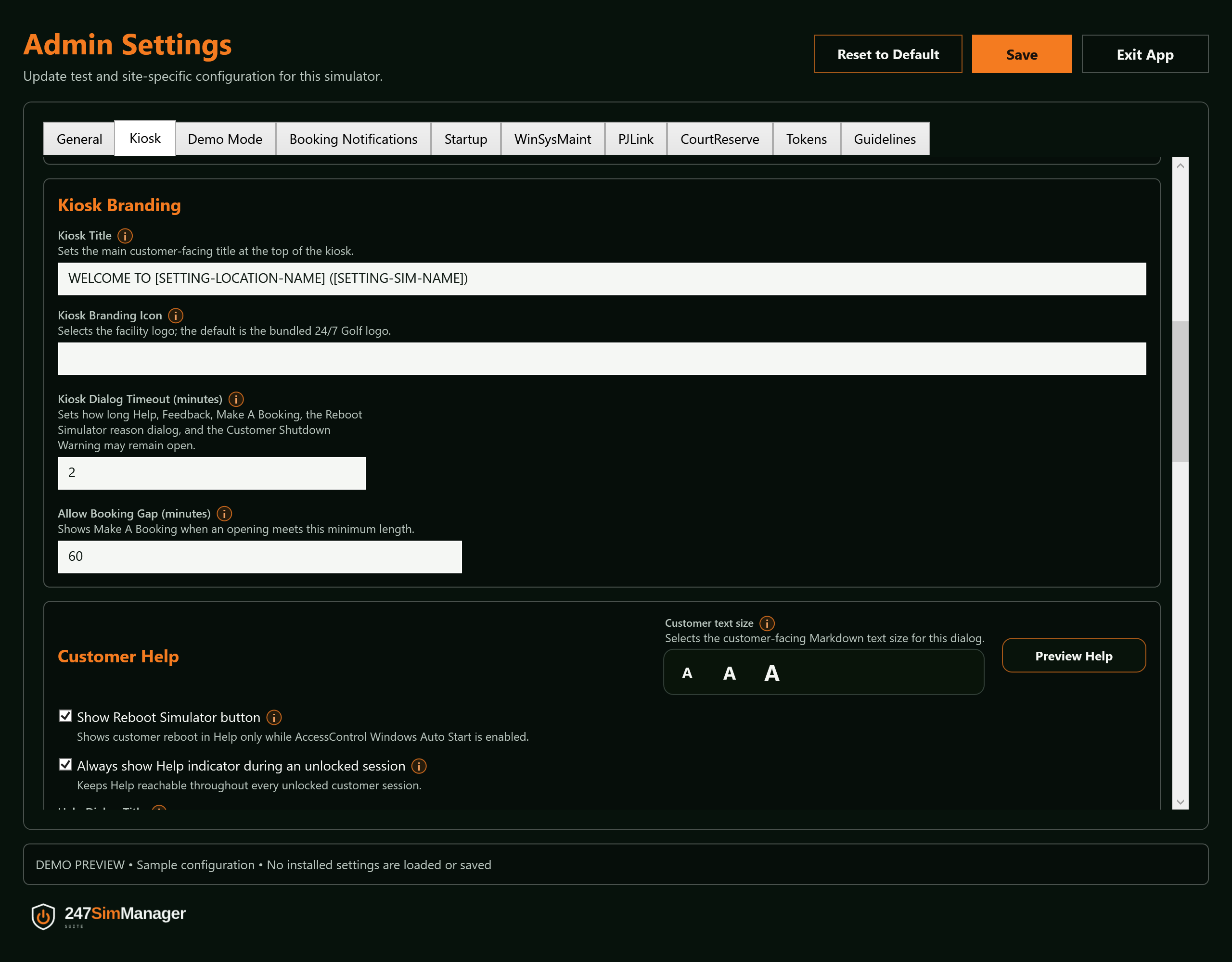
Help with customer reboot enabled
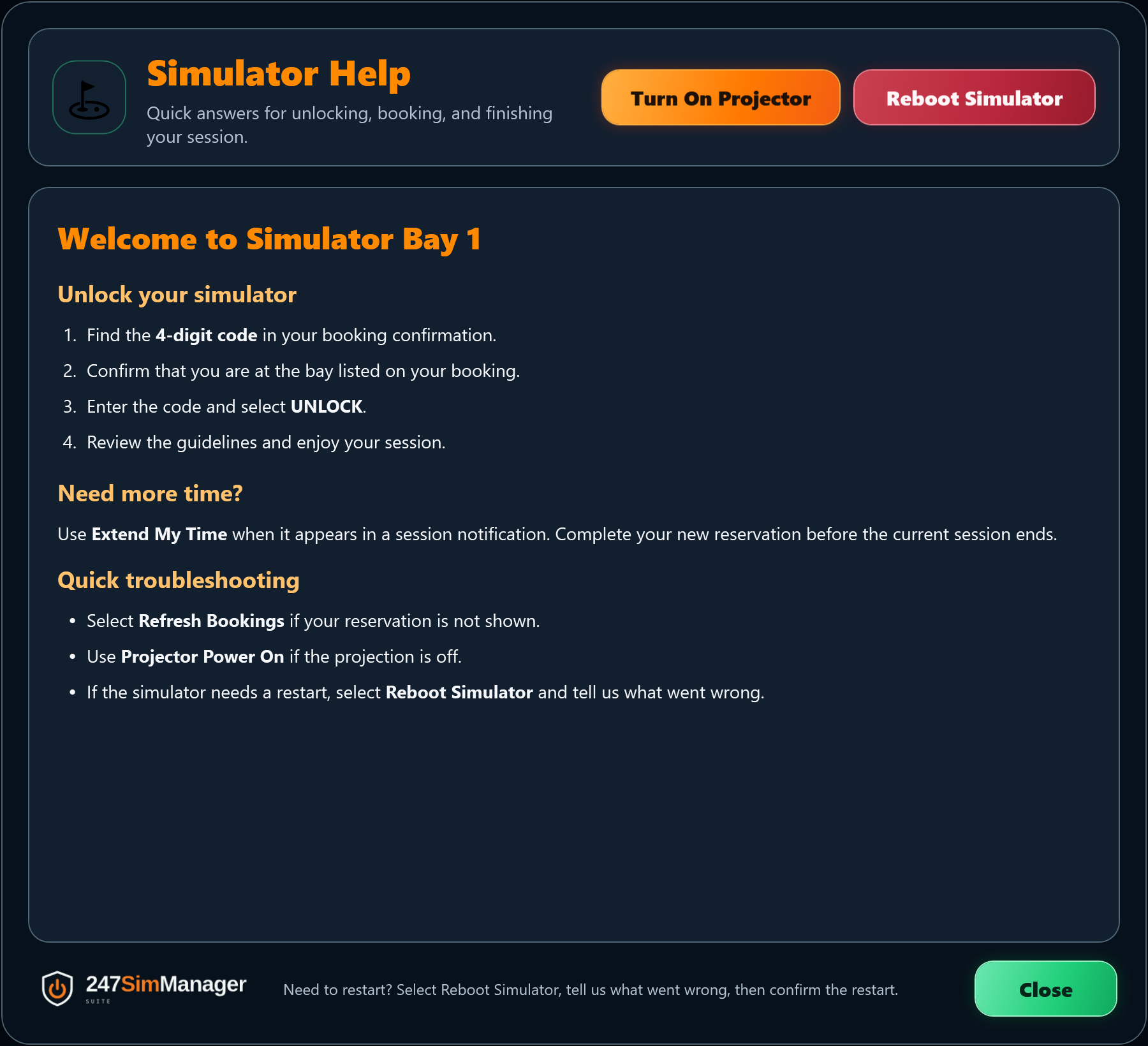
The red reboot action is visible only with administrator opt-in and confirmed Windows Auto Start. Green Close is at the bottom right; Turn On Projector remains orange.
 247SimManager
24/7 Golf pilot operator guide
An independent simulator PC suite, first piloted at 24/7 Golf, combining the 247GolfAccessControl Windows application, CourtReserve booking data, simulator software, RemoteLock door PINs, PJLink projector automation, deployment automation, WinSysMaint, and owner-facing documentation.
Build dashboard
This repository carries the independent 247SimManager Suite: the 247GolfAccessControl Windows application, the WinSysMaint watchdog service, interactive simulator-PC Deployment Manager, and the documentation layer used to keep owners and future developers aligned.
Metrics include tracked suite source, tests, documentation and this owner guide. The separately managed marketing website and generated build output are excluded.
Completed October 1: the Thank You for Playing message now supports Markdown and all six booking/location tokens in both its title and message. Friendly golf-themed defaults ship with a deployment option that replaces only those two saved text values. Deployment Manager now uses the 247SimManager Suite logo and Windows icon. The full Debug 1.46.18 installer passed all 971 tests and independent package verification, and its Google Drive delivery is confirmed.
[SETTING-MINUTES-BEFORE-BOOKING-END] expands to values such as 10 minutes across supported token surfaces, including Time Extended. It represents the live setting, not a running countdown.C:\ProgramData\WinSysMaint\service.json, it preloads the computer's current firewall, App & browser control, Smart App Control, Defender-exclusion switch, and exclusion-path choices. A new computer instead starts with the approved 24/7 Golf defaults, which the administrator can review and edit before deployment.C:\ProgramData\Trackman, C:\Program Files\TrackMan Performance Studio, C:\Program Files\247Golf, C:\Program Files\247Golf\SimManager, and C:\Program Files\247Golf\SimManager\AccessControl. Defender itself remains enabled.247SimManager\Debug or 247SimManager\Release Drive destination.. or .. segments. Existing duplicate JSON is repaired deterministically by retaining the first row and its order.AD39BE884EE6135E62DCD98C9C6D41A1078E18A64CAE39B120F1F75A6BA24A64.Location Name placeholder, working scheduler defaults, and blank API credential defaults.service.json is packaged and installed with the same defaults owners see in AccessControl Settings.[POST-BOOKING-GRACE] placeholder is documented separately with its supported scope.0000 for easy onsite confirmation, and duplicate startup instructions collapse to one canonical simulator launch row.service.json; service binaries, the surrounding ProgramData folder, and Windows service control remain protected.
The red reboot action is visible only with administrator opt-in and confirmed Windows Auto Start. Green Close is at the bottom right; Turn On Projector remains orange.
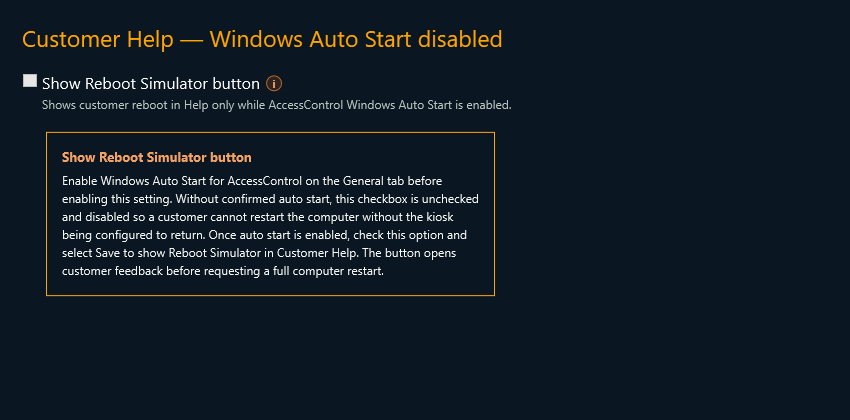
The help icon explains how to enable the prerequisite even while the setting is disabled.
The WPF kiosk shell that sits in front of the simulator software, validates CourtReserve booking PINs, shows owner-defined usage guidelines, and controls the handoff into the golf simulator session.
Location Name.
The interactive deployment application and Windows service that install, verify, maintain, repair, and remove a simulator computer. Together they manage application files, secure first-run setup, shortcuts, startup choices, workstation policy, maintenance, AccessControl watchdog recovery, service health, and operational history.
0000 Admin Code visible for onsite verification, and removed duplicate startup declarations so new and preserved installations resolve to one canonical simulator launch instruction.
5e3cc06: all 625 tests passed, all 986 manifest-controlled files matched, all three executables report 1.43.2.0, both settings schemas report 1.43.2, reusable credentials remain blank, and the Microsoft-signed WebView2 prerequisite remains valid.
8337153: 641 tests passed, all 986 manifest-controlled files matched, all three executables report 1.43.4.0, both settings schemas report 1.43.4, reusable CourtReserve credentials remain blank, and the Microsoft-signed WebView2 prerequisite remains valid.
69204e3: all 642 tests passed, all 986 manifest-controlled files matched, all three executables report 1.43.5.0, both settings schemas report 1.43.5, reusable CourtReserve credentials and adapter GUID remain blank, the Microsoft-signed WebView2 prerequisite remains valid, and ZIP SHA-256 is 7C01983DA8177DDB45A43AAA350F20BB1CE8A047CEC2621E484F320A99566755.
9E6EB51ED14C5E95F45C31154BCC30DAC47FF4160DE7CD40539D098ED0052A50.
79c7c1f: all 688 tests passed, all 986 manifest-controlled files matched across 987 ZIP entries, all first-party executables report 1.45.6.0, the WebView2 prerequisite retains a valid Microsoft signature, and the 394,518,528-byte EXE has SHA-256 C29F011977EC8492630E9A21BE0E3ABED96995B7D59DC96FE48FE6FEF2F90219.
73cb2f3: all 701 tests passed, all 986 manifest-controlled files matched across 987 ZIP entries, all first-party executables report 1.46.0.0, reusable CourtReserve credentials and the adapter GUID remain blank, the WebView2 prerequisite retains a valid Microsoft signature, and the intentionally unsigned 394,547,200-byte EXE has SHA-256 6167D990B90ED43D8DC3E5E1CF10B0775B7CDDE1A82DE648E3C1C31763172990.
da2446f: all 712 tests passed, all 986 manifest-controlled files matched across 987 ZIP entries, all first-party executables report 1.46.2.0, reusable CourtReserve credentials and the adapter GUID remain blank, the WebView2 prerequisite retains a valid Microsoft signature, and the intentionally unsigned 394,567,680-byte EXE has SHA-256 C1D92B91E374E14E167228542CA945AA278151094C784E3C96B54CB1F44EBF03.
c5a6f93: all 714 tests passed, all 986 manifest-controlled files matched across 987 ZIP entries, all first-party executables report 1.46.3.0, reusable CourtReserve credentials and the adapter GUID remain blank, the WebView2 prerequisite retains a valid Microsoft signature, and the intentionally unsigned 394,567,680-byte EXE has SHA-256 A2539B4A3B188E541B778D77838E851F568FFB61D44894466CB91095DB26162A.
4561c42 to 247SimManager / Debug. All 735 tests passed; independent verification matched 986 manifest files across 987 ZIP entries, checked version 1.46.4.0, blank reusable credentials and adapter identity, and the valid Microsoft WebView2 signature. The 394,571,776-byte EXE has SHA-256 9BCAF6D39F3326245D2FAA49D57BEBBCC341082AEC05FDC4710427CCCD1E5D6E.The public website, README, API notes, Swagger reference, architecture deck, setup guide, shared configuration, and visual assets that explain what is being built and why it matters.
Debug 1.46.18 · Product and facility identity
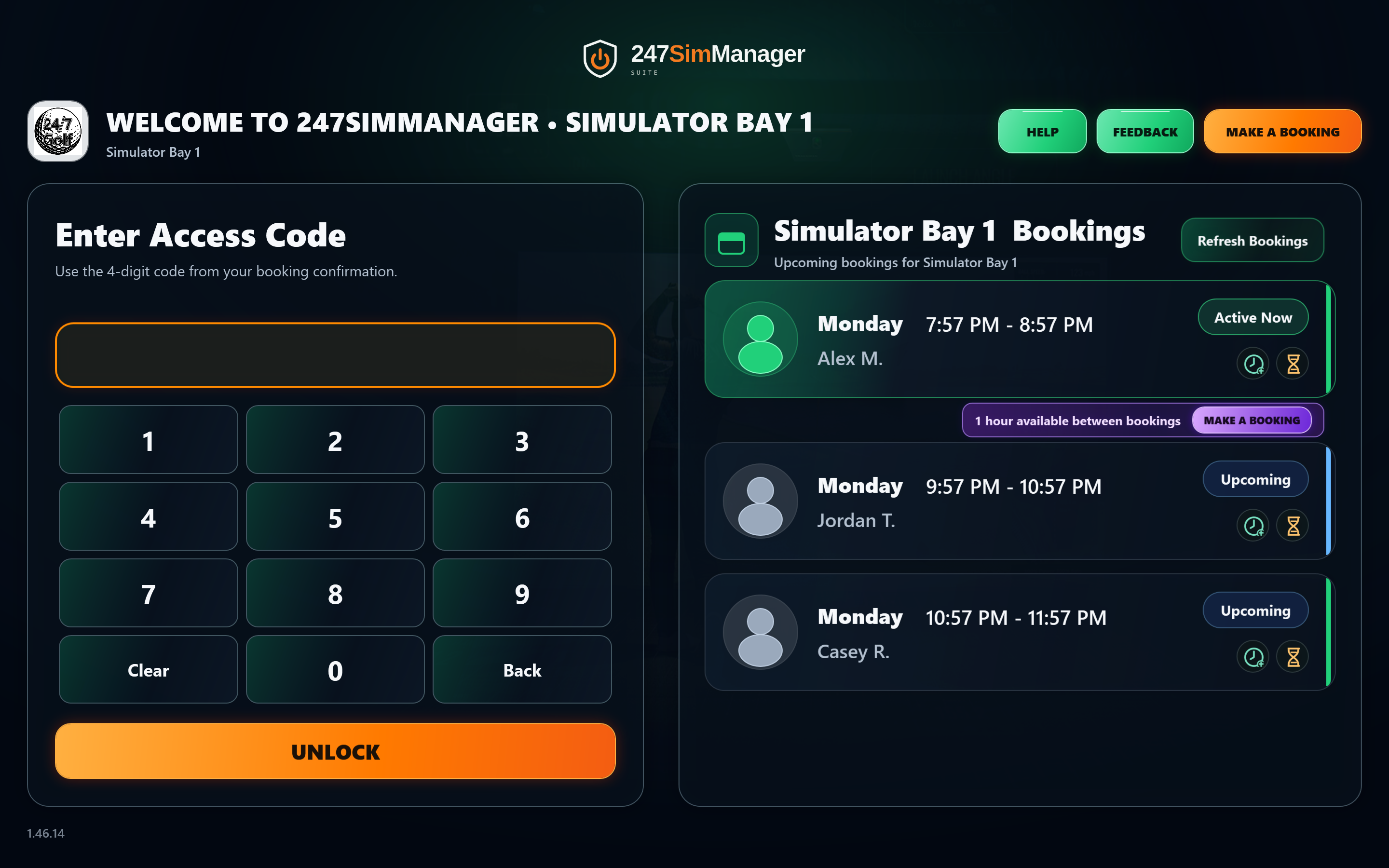
The Suite wordmark sits at the top center of the kiosk and at the bottom left of its customer and administrator dialogs. Its small orange shield identifies AccessControl in Windows and the notification area. Your facility title and logo remain configurable; the default facility image is still 24/7 Golf.
The kiosk header, Help, booking notices, guidelines, booking browsers, recovery dialogs and administrator Settings share the established Suite wordmark. Branding is embedded in the application and needs no network connection.
Keep Settings → Kiosk → Kiosk Branding Icon blank to use the bundled 24/7 Golf logo beside the facility title. A custom facility image changes that location identity independently of the Suite header, footer and Windows icon.
Compact kiosk windows scale the full layout so the keypad and customer actions remain visible. Dialog branding stays separate from buttons and countdowns. Green safe actions and the red Help reboot action retain their behavior.
These isolated Debug 1.46.14 WPF previews use synthetic bookings. The branding review rendered 32 views, including a compact 1024 × 640 kiosk, and checked logo bounds and button separation. Windows-owned file pickers, UAC prompts and standard message boxes keep their native layouts.
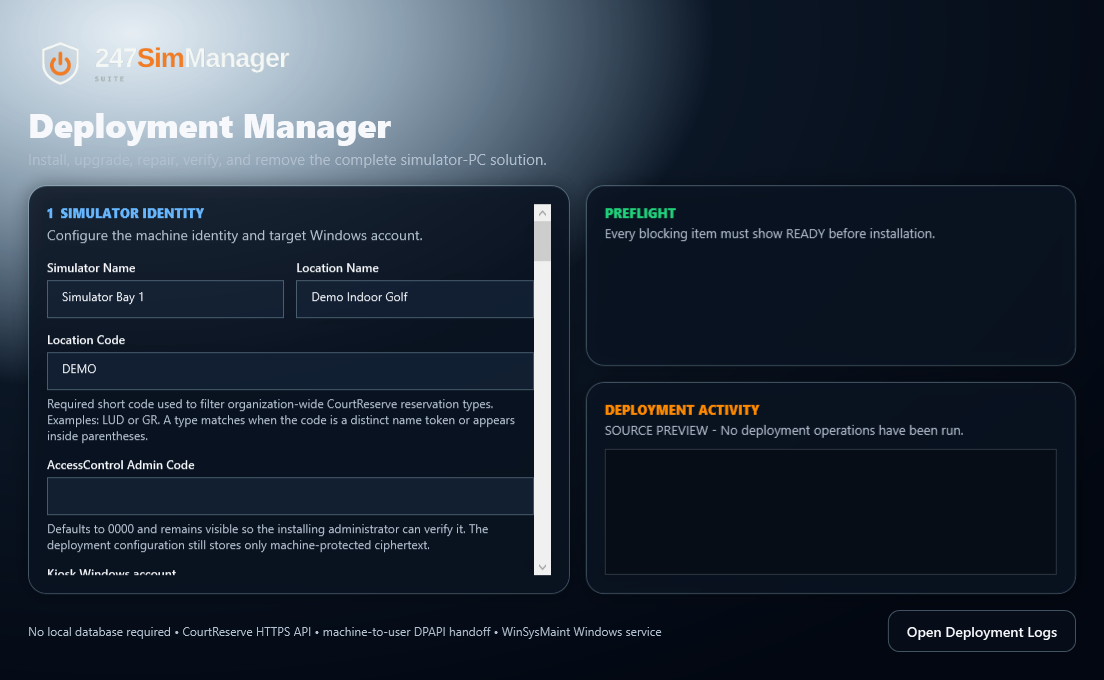
The full shield-and-power logo replaces the green 24/7 Golf heading and old facility badge. The executable, main window, and Settings Review window use the same Suite application icon as AccessControl. Window and confirmation titles now say 247SimManager Deployment Manager.
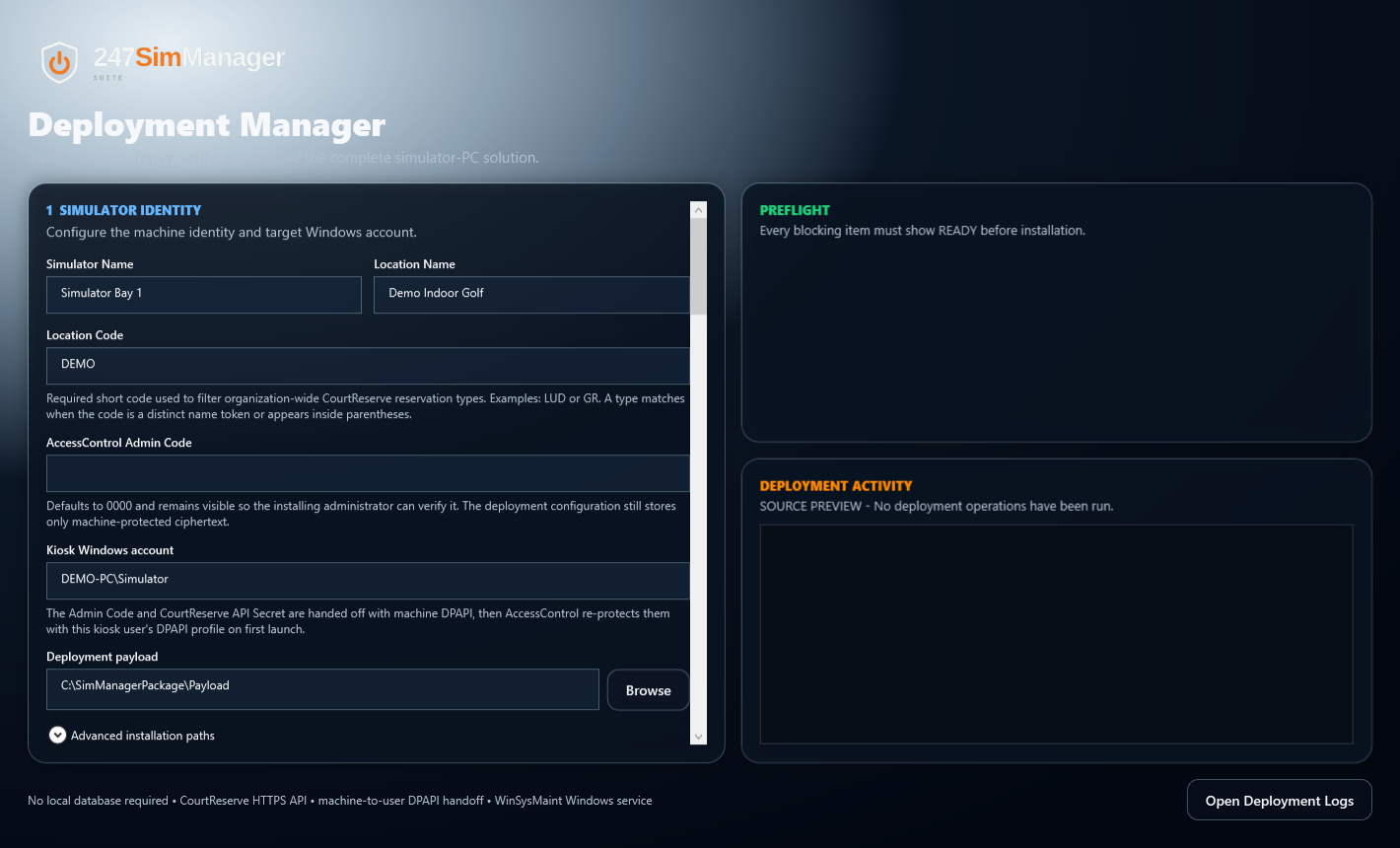
October 1 native WPF source preview with synthetic simulator data and no deployment operations. The compact-window preview confirms the logo fits at the minimum window size. The final 1.46.18 package's embedded logo and ICO hashes match the canonical assets, and its executable icon passed a pixel comparison.
Both assets are embedded in Deployment Manager itself for offline availability. No installed AccessControl application or separately copied image is required. Facility branding remains an independent kiosk setting.
Customer recovery and administrator troubleshooting
The customer explains the problem before confirming a reboot. Later, an administrator can select that restart in Debug and assemble a dated report from retained TrackMan, Windows, and AccessControl evidence.
Help's red Reboot Simulator button opens a native form with Slow Computer Performance, Not Reading Shots, and Other. Other requires comments; the other reasons allow optional comments. Multiline and multilingual input is supported. Cancel, Escape, dismissal, or timeout cancels the reboot.
In Admin Mode, open Debug → Customer Reboots. The newest genuine WinSysMaint event 1025 appears first, with local date/time, machine, event record, reason, and comments when available. Scheduled maintenance and monitoring test samples are excluded. Older genuine events remain visible without feedback.
Select the event, choose Generate Report and a destination folder, then approve Windows administrator elevation. Show Report in Folder locates the completed text file. Export reads evidence; it does not restart the computer, close TrackMan, or change Windows settings.
Customer reboots and WinSysMaint startup write their normal events but never generate reports. There is no automatic four-hour job. The selected incident defines an eight-hour Windows before-window and an after-window through WinSysMaint startup plus four hours. The report includes shutdown activity and separately identifies the Windows boot boundary.
If the four-hour endpoint has not arrived, the report stops at export time and says it is partial. Generate another report later to include more retained evidence. If Windows boot or service-start evidence is missing, the report labels its estimated timing instead of claiming a confirmed restart.
The filename includes the reboot event's UTC date/time and Windows record number. The Debug list shows local time with its UTC offset. Repeat exports receive a unique suffix rather than replacing an earlier report.
RebootDiagnostics_2026-09-19_23-43-48_UTC_Event-109145.txt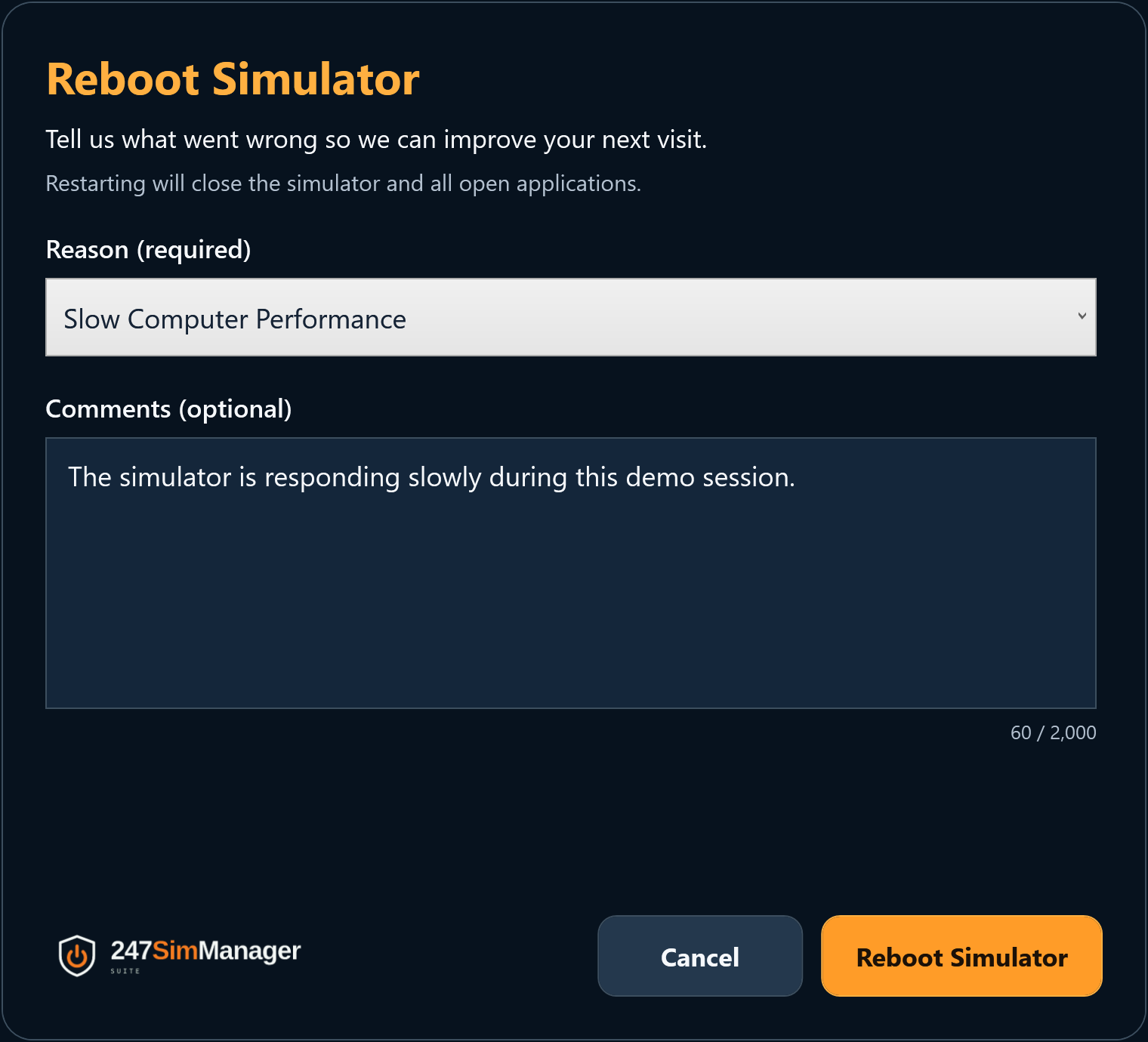
Production WPF dialog with synthetic feedback. Normal Feedback and Customer Shutdown still use the configured web form; this reboot form has no web-form dependency.
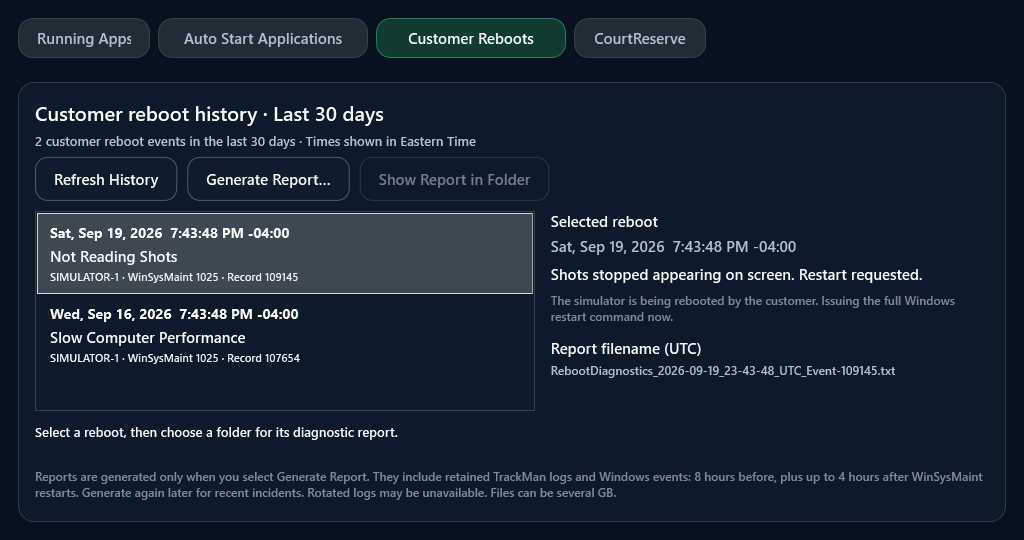
Production WPF tab with synthetic reason/comments. History reads need no elevation. The export rechecks the exact event identity before collecting protected logs.
A September 21 local search examined more than 650,000 file entries and checked TrackMan configuration and support archives to inform this coverage. This does not guarantee access to every log on every simulator. The continuous TrackMan monitor remains a separate, bounded summary service; these manual reports collect broader raw evidence.
Reports may span several gigabytes and require additional temporary space, with at least 1 GiB reserved free. Collection runs at lower priority and has bounded timeouts. Reports can contain customer comments and raw log data; they stay in the selected folder and are not uploaded automatically. For a Codex review, provide the file and ask for a timestamped investigation that separates evidence, coverage gaps and hypotheses.
Customer restart: Help → native validated reason/comments → AccessControl → local WinSysMaint request → shared maintenance gate → event 1020 → settings enforcement and application closure → event 1025 → Windows restart command.
Administrator report: Debug history → Windows Application event selection → elevated WinSysMaint export command → read-only TrackMan/Windows collectors → staged report → dated file in the selected folder. Export does not start the normal service host and needs no cloud service or TrackMan API login.
Install matching AccessControl and WinSysMaint from the current Deployment Manager package. The manual export requires WinSysMaint 1.46.12 or newer. Event 1025 proves the restart-command boundary was reached; nearby Windows boot and service-start records provide restart confirmation. Build and package checks do not replace an installed-simulator acceptance test.
Consistent customer controls
Keep Playing is green before booking end and while eligible buffer time remains. Continue is green after a confirmed extension, I ACCEPT is green in the guidelines, and Close is green at Help's bottom right. Without eligible buffer time, Done is green; it also becomes green if the buffer expires while the dialog stays open. The guidelines still require scrolling when needed before acceptance is enabled.
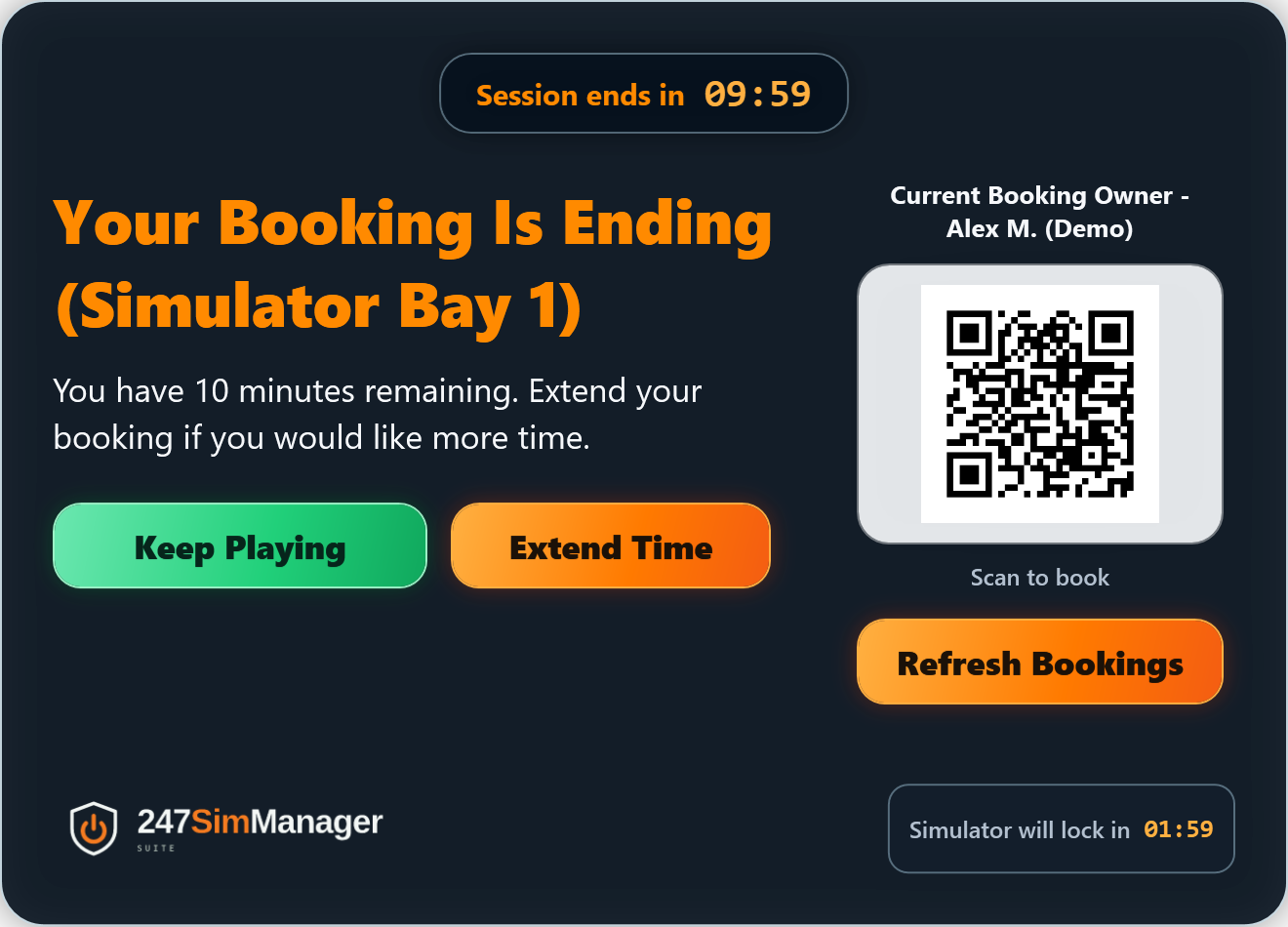
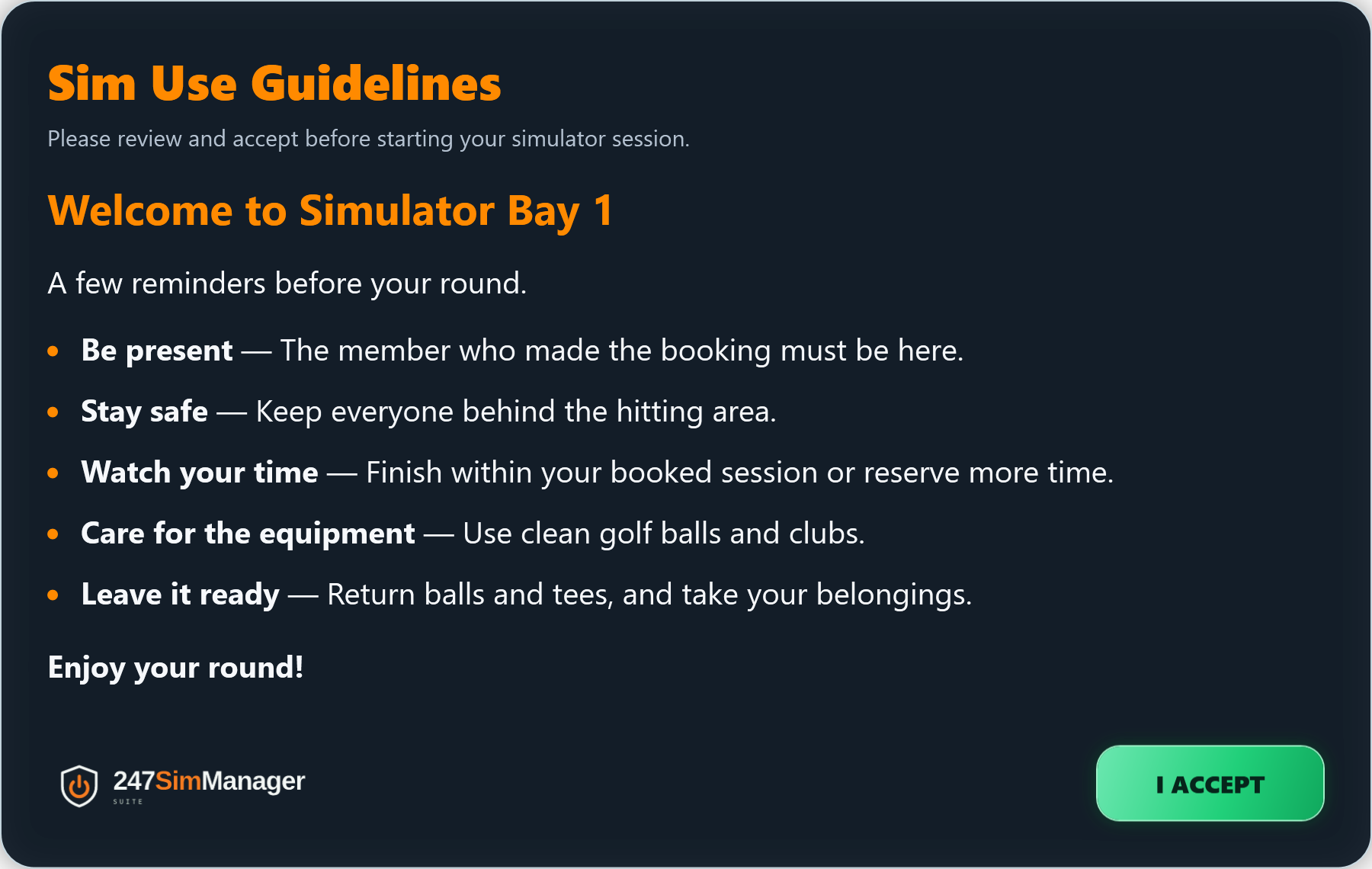
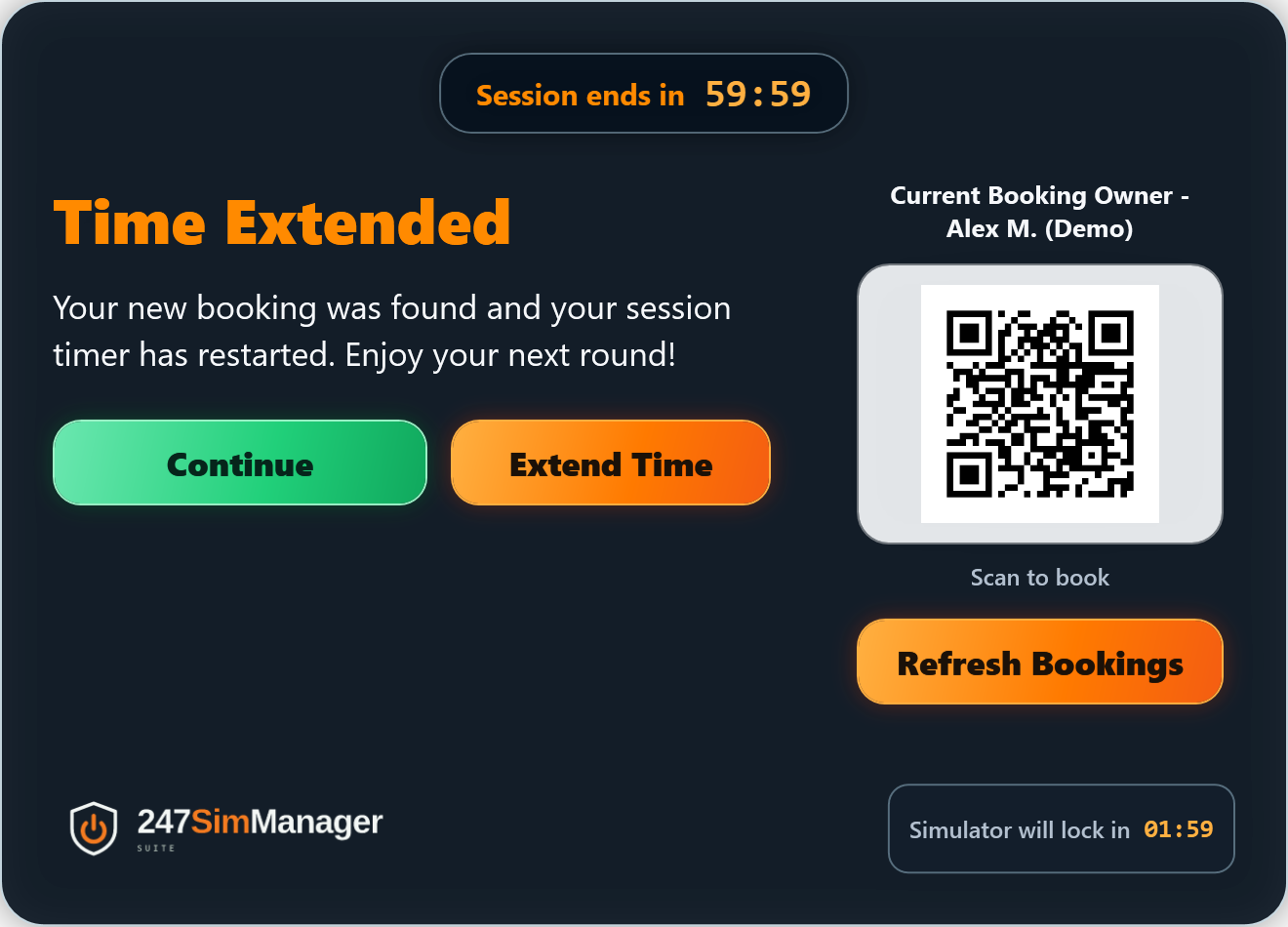
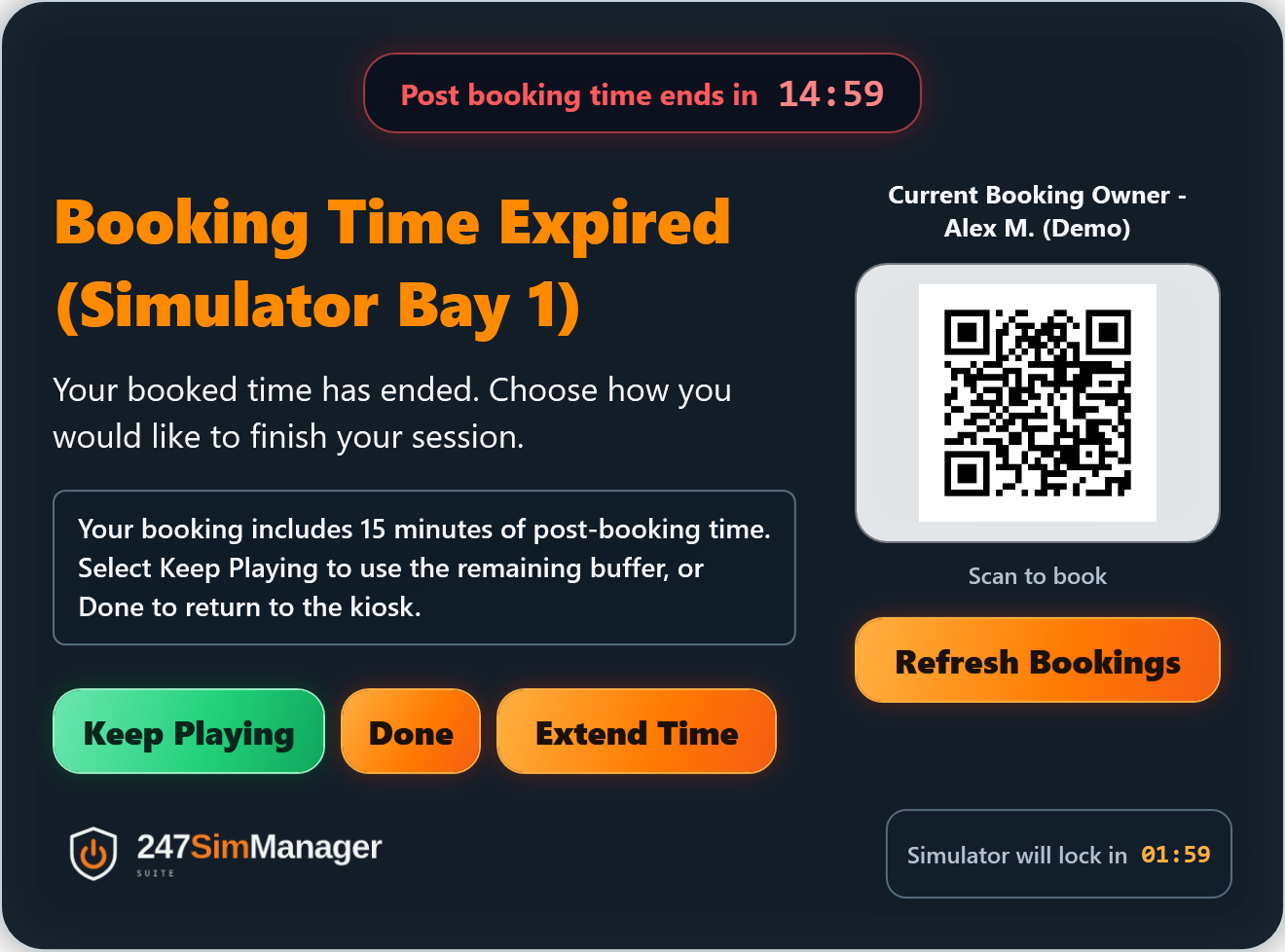
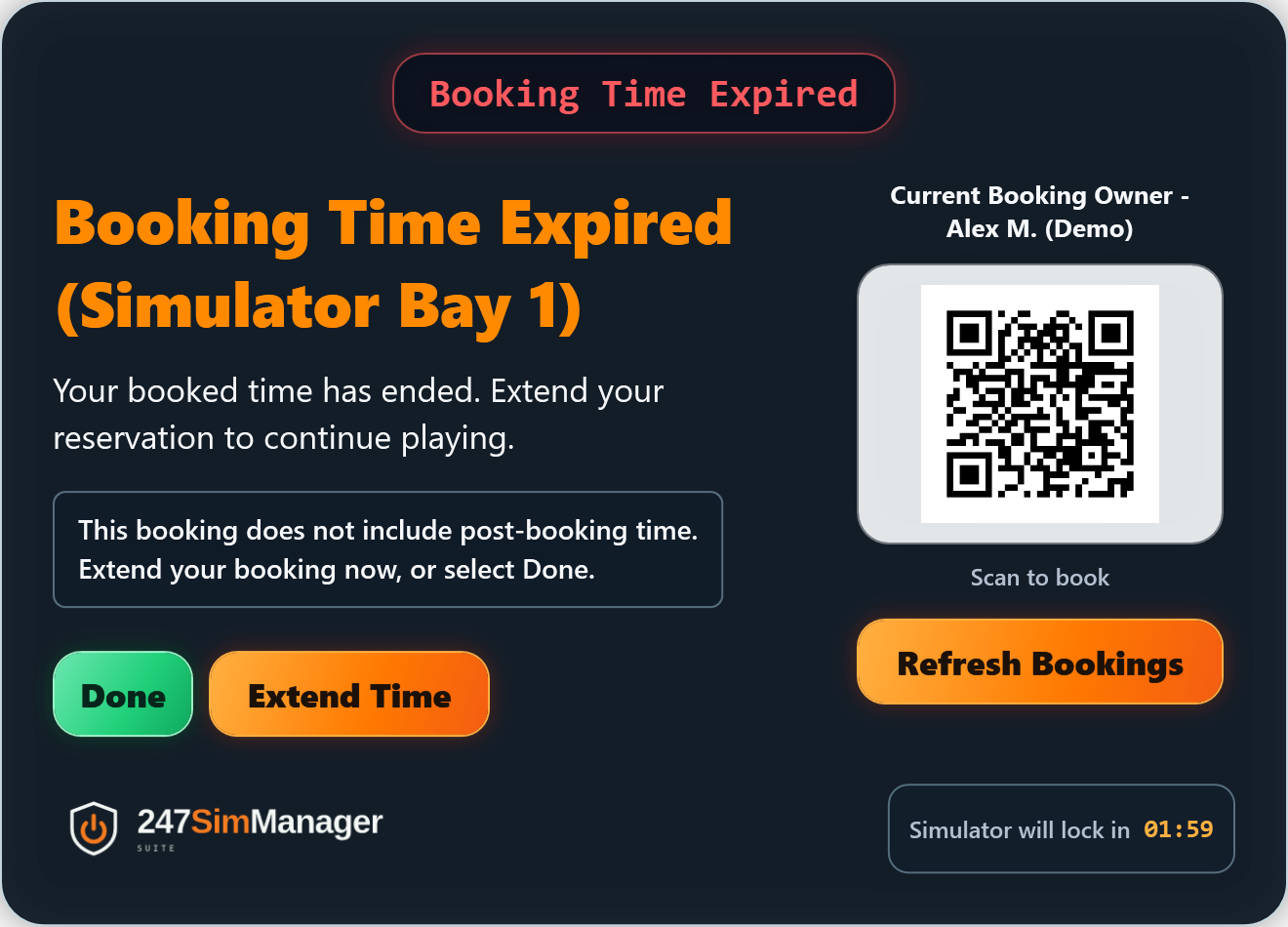
These September 21 production-WPF previews use synthetic data. All four notification images show a sample QR encoding https://example.com/demo-booking; actual installations retain their configured facility QR. The current release refreshes these views with Suite footer logos; the branding review covers 32 native application, dialog and Settings views. These screenshots establish appearance, not live bookings or service health.
Demo videos
These recordings give location owners a practical look at the AccessControl settings, customer-facing workflow, live CourtReserve booking behavior, embedded extension workflow, notification previews, customer Help and Feedback, bookable schedule gaps, beta recovery, and Admin-only Demo Mode support. The newest walkthrough demonstrates booking extension and buffer policy by reservation type, while the preceding videos cover invalid-payment protection and chained reservations. Use the written Settings, Demo Data, and Booking Logic guides below for the complete current rules.
A guided overview of the AccessControl admin settings, including what each setting controls and how the options support location setup, booking notifications, and future automation.
Watch videoA walkthrough of the core customer journey from unlocking the simulator through the end-of-booking flow, including the optional post-booking buffer period that each location owner can allow for every booking, reserve for longer bookings, or disable entirely.
Watch videoA current end-to-end walkthrough showing live CourtReserve bookings inside the working AccessControl app, followed by a deeper tour of the new Demo Mode workflow for owner demos, training videos, and on-site testing.
Watch videoSee how customers can open CourtReserve inside AccessControl, make a new reservation to extend their simulator time, and return to a notification that automatically checks for a qualifying extension. The walkthrough also covers the expanded Booking Notifications settings and one-click previews, making it easy to review custom titles, messages, instructions, and the embedded scheduler before customers see them.
Watch videoSee the new customer-facing Help, Feedback, and Make A Booking experiences, including owner-configurable guidance, the embedded CourtReserve scheduler, and availability rows that identify short gaps and bookable openings before or between reservations. The walkthrough also demonstrates the optional beta shutdown safeguard, which requests feedback and records a Windows Application Event Log error so monitoring can alert the location when a blocking issue forces the kiosk to close.
Watch videoThis extended, in-depth walkthrough reviews the AccessControl settings available when it was recorded, explains how the options shape normal Live operation, and covers the separate controls used for safe Admin-only Demo Mode testing. Pair it with the current written guides for portable Demo files, AI-assisted scenarios, auto start, monitoring samples, and the final customer text-size controls added later on July 17.
Watch videoShows how the new chained booking feature works and moving bookings between sims.
Watch videoSee how AccessControl handles a reservation that has not been fully paid. The booking remains visible in red with an Invalid Booking status and Amount Pending, but its PIN cannot unlock the kiosk or join a chained session. Its reserved time still remains part of every schedule-gap calculation. Demo Mode reproduces the scenario safely without changing live CourtReserve bookings.
Watch videoSee how Location Code selects the location's CourtReserve reservation types; how owners configure Allow Extending, Enable Buffer, minimum paid duration, and buffer minutes; and how booking colors and optional hoverable customer indicators explain the result. The walkthrough also demonstrates how linked same-customer bookings are evaluated as one continuous session.
Watch videoLocation owner settings guide
Open Admin Mode, select Settings, and use this guide to understand the operational intent of each control. Most AccessControl changes are staged until Save is selected. Windows Auto Start is an immediate action, and valid WinSysMaint changes are written directly to its service configuration as they are edited. Use Reset to Default when the complete new-deployment profile should be restored under the explicit identity, widget, credential, and WinSysMaint rules described below.
Each setting below starts with the exact short sentence shown in the application. The second paragraph matches the detailed explanation an administrator sees from that setting's information icon, so the website and installed application can be reviewed side by side.
AccessControl also maintains a complete installed settings document. When
a valid older SimulatorConfig.json does not contain a setting
introduced by a newer version, startup adds that setting with its current
default. Values already present in the installed file remain unchanged,
including an owner's explicit checked or cleared choice.
Preview buttons use current unsaved content so owners can check customer wording and layout before committing it.
Enable or Disable Auto Start changes the current registration immediately and may request administrator approval for an installer-managed task.
The service tab updates service.json without the main Save button. Select Restart WinSysMaint when those saved values should be loaded by the service.
Simulator Name, Location Name, and the CourtReserve API URL are always preserved. Widgets, API credentials, and WinSysMaint defaults change only according to the selected reset choices.
The Tokens tab lists six general dynamic placeholders for customer-facing text. The Help renderer also supports one documented policy placeholder for the current post-booking grace value.
On startup, a valid installed settings file receives any missing current fields. Existing owner selections remain authoritative and are never replaced merely because the app version changed.
service.json values and keeps its Simulator Name synchronized. The reset saves immediately but does not restart the service; reopen Settings and select Restart WinSysMaint when the service should load the new values now.[SETTING-SIM-NAME], and labels diagnostics; the WinSysMaint value identifies maintenance, service-health, and AccessControl watchdog events. Keep both values aligned so support records clearly point to the same simulator.[SETTING-LOCATION-NAME] in the Kiosk Title and configured dialog titles, messages, descriptions, and Markdown. This presentation-only setting does not affect CourtReserve court matching, diagnostics, or WinSysMaint. New installations use Location Name as the generic placeholder until the operator enters the actual location.LUD or GR. A reservation type matches when the code appears as a distinct name token or as the exact value inside parentheses, case-insensitively. Deployment Manager and AccessControl use the same rule so unrelated locations' types are not shown or provisioned.[POST-BOOKING-GRACE] placeholder displays the current post-booking minutes value. Preview uses the current unsaved text so wording can be reviewed before Save. The new-deployment default places Simulator Use Tips before Make A Booking and covers approved golf-ball colors, marker safety for the impact screen, reflective clubheads, and prompt putting setup.Demo Mode has its own timing, generated schedule, notification, extension, and post-booking controls so testing never changes the live CourtReserve policy. The complete setting-by-setting explanation, Generate/Save/Load workflow, portable files, and AI scenario guidance are in the dedicated Demo Data section.
Open the Demo Data guideEvery configured customer-facing notification title, message, description, and Markdown field supports the six dynamic tokens in the Tokens tab. AccessControl expands the current booking and installed Simulator/Location values when each Live, Demo, or preview dialog opens.
.exe path, Process Name is the Windows process name without .exe, and Delay is the whole-minute pause after that process is found. AccessControl waits for each row before advancing; changes take effect on the next application start. A normalized, case-insensitive executable path is the row identity, so the same application cannot be added twice through Browse, direct editing, or Save. Equivalent . and .. path segments are treated as duplicates. If older JSON already contains duplicates, the first row and its original order are retained.C:\ProgramData\Trackman, C:\Program Files\TrackMan Performance Studio, C:\Program Files\247Golf, C:\Program Files\247Golf\SimManager, and C:\Program Files\247Golf\SimManager\AccessControl. Add only trusted application or data paths that genuinely require exclusion because antivirus scanning is reduced there. The list is applied only while Configure Defender antivirus exclusions is selected..exe paths for applications that should use the high-performance GPU. WinSysMaint applies the preference for every real Windows user account during maintenance. Add only graphics-intensive simulator applications that need the discrete GPU. The list rejects duplicate normalized executable paths without regard to letter case and treats equivalent . and .. path segments as the same application. Existing duplicate JSON is repaired by keeping the first configured path and its order.%1POWR 1.This standard PJLink Class 1 command is sent only after authentication and the configured manufacturer, model, and serial checks pass.%1POWR 0.This standard standby command is sent only from eligible locked-kiosk policy or a confirmed administrative commissioning test. Failed booking refreshes never authorize it.%1POWR ?.AccessControl interprets Standby, On, Cooling, and Warming and uses those states for startup gating, transition protection, commissioning tests, and runtime decisions.The six general tokens may be used in the Kiosk Title, Booking Guidelines, customer-shutdown warning title and Markdown, Help title and Markdown, Feedback title, Make A Booking title and instructions, Booking End Closing title and Markdown message, and other supported Booking Notification titles, messages, extension text, and customer instructions. AccessControl replaces them only when the text is displayed; Admin previews use safe representative booking values. URLs, credentials, file paths, process names, widget embed code, QR image paths, and projector commands remain literal.
[BOOKING-OWNER][BOOKING-START][BOOKING-END][SETTING-SIM-NAME][SETTING-LOCATION-NAME][SETTING-MINUTES-BEFORE-BOOKING-END][POST-BOOKING-GRACE]Demo Data
Demo Mode is available only inside an authenticated Admin session. It uses synthetic bookings, privacy-safe names, fresh temporary PINs, and an isolated timing/policy profile. Every application start begins in Live Mode, and ending Admin Mode clears the imported Demo timeline from memory.
Demo controls reuse the same short and detailed descriptions as their Live equivalents whenever the behavior is the same. Only the stored values are separate; Booking Continuity is intentionally shared.
AccessControl starts from the current local computer clock plus Gap Before First Booking, creates the requested number of synthetic bookings, chooses whole-minute durations inside the configured range, and adds back-to-back and below/equal/above-threshold gaps as space permits.
Select Generate Demo at any time in Admin Demo Mode to leave an imported timeline and return to a newly generated schedule based on the current saved Demo Settings.
Save Demo Settings JSON validates and exports the current Demo-tab values, including unsaved edits. Load Demo Settings JSON validates a versioned profile and stages only those Demo controls. Review the timeline summary, then select the normal Settings Save button to apply it.
Save Demo CSV exports the bookings and positive gaps currently shown. Load Demo CSV validates the sequential Booking/Gap rows, re-anchors booking 1 to the current clock, applies the saved Demo timing/policy settings, generates fresh safe PINs, and displays the scenario immediately.
Each Booking row also carries an UnpaidAmount. Use 0 for a valid paid or no-fee Demo booking. A positive value creates a red Invalid Booking card, displays that value as Amount Pending, rejects its PIN, and prevents it from joining a continuity chain. Its complete scheduled interval still participates in every availability-gap decision. Gap rows use N/A.
Refresh Bookings retains an imported CSV during the authenticated Admin session, moves its first booking to the new current local time plus Gap Before First Booking, recalculates every following booking and gap, and creates a new set of PINs. Ending Admin Mode clears the imported scenario.
The repository now includes a portable AccessControl Demo Scenarios skill designed for ChatGPT, Codex, Claude, Claude Code, and other skill-aware tools. Its package provides the AI with the JSON and CSV contracts, supported scenario catalog, example files, privacy rules, boundary behavior, and an automated validator.
An owner can describe an outcome such as “show gaps immediately below, equal to, and above both booking thresholds” or “demonstrate a short booking that does not receive wrap-up time and a longer booking that does.” The skill can review an exported settings profile, explain conflicts, preserve unrelated valid values, propose a coverage table, generate a coordinated settings/timeline pair, and validate both files before import.
ChatGPT can use the installed skill in a file-capable work session; Claude can use the complete packaged skill through its supported custom-skill or code workflow. Owners should attach only the secret-free Demo Settings export, request synthetic privacy-safe names, review the proposed settings, and import the validated files in the order above. The skill source and its Markdown are intentionally not published or downloadable from this website.
Demo CSV is intentionally one sequential series of bookings and gaps. It does not represent simultaneous overlapping reservations, API outages, stale CourtReserve responses, court-filtering failures, or malformed live timestamps. Those remain controlled integration tests rather than portable owner demo data.
Booking Management Logic
CourtReserve remains the source of truth. AccessControl turns that schedule into a kiosk-safe customer experience: it validates the right code and payment state, remembers the booking that opened the session, protects later customers, highlights openings that may support a new booking, and never grants extra time until a fresh live reservation passes every extension rule.
Before showing Pre End, AccessControl refreshes CourtReserve in the background, reconciles the current booking, and evaluates the full buffer policy: reservation-type opt-in, confirmed paid duration, a verified schedule, and enough room before the next booking. It selects the qualifying message only when every requirement passes; otherwise it selects the no-buffer message.
When the booking qualifies for buffer time — default:
You have [SETTING-MINUTES-BEFORE-BOOKING-END] remaining. Use the Extend Time button or make a new booking for simulator: [SETTING-SIM-NAME] with the 24/7 Golf Mobile app or online at https://24-7golf.com.
When the booking does not qualify for buffer time — default:
You have [SETTING-MINUTES-BEFORE-BOOKING-END] remaining. Extending your time is not available, please Keep Playing. The simulator will lock at your booking end time. Thank you for choosing 24/7 Golf.
Token source: [SETTING-MINUTES-BEFORE-BOOKING-END] reads the live Pre End Minutes setting, including in Demo Mode. It expands to 10 minutes by default or 1 minute for 1. It is available everywhere the general tokens are supported, even without a current booking, and is not a live countdown.
Buffer eligibility and permission to extend paid time are independent. Customize these messages for the policy combinations you enable; the Extend Time button follows its own rules. The generic extension-denial message never replaces the selected Pre End message. The existing inactivity timeout can still lock an unattended kiosk before booking end.
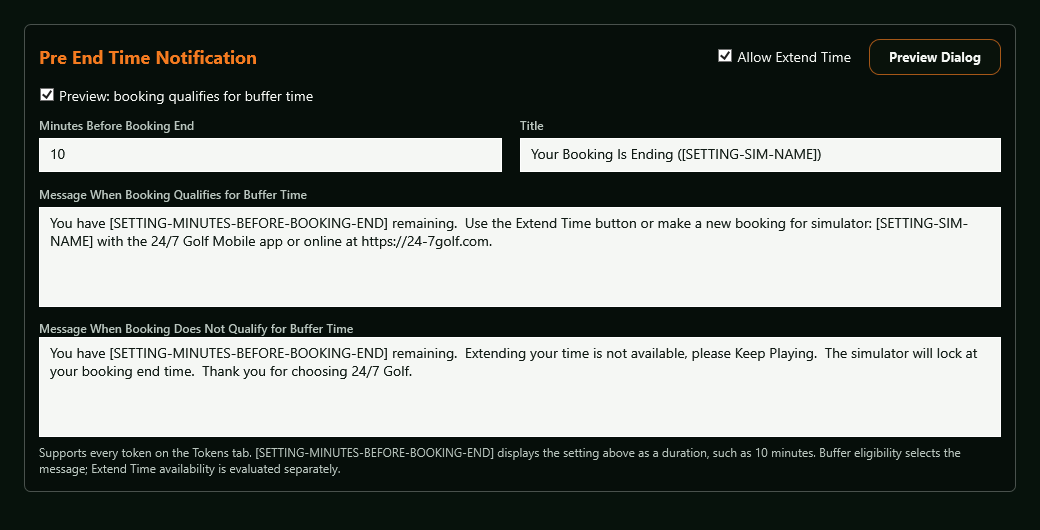
Actual Settings XAML rendered with current defaults. Preview either buffer outcome and the extension button independently without changing booking policy.
AccessControl requests the previous day through tomorrow using local simulator-clock boundaries without a timezone offset, then filters the result to the configured court. This keeps early-morning, exact-midnight, and overnight reservations available across a calendar change. The locked screen removes completed rows, begins with the first non-ended booking, and includes upcoming reservations inside the configured display window.
The exact reservation matched by the successful code remains the displayed owner for the session. Sequential, non-overlapping bookings on the same court are joined only when both have the same positive CourtReserve OrganizationMemberId and their gap is at most the shared continuity setting. Customer-facing surfaces still use first name plus last initial, but that privacy-safe label is never used to prove identity.
A PIN works only for a payment-valid reservation during paid time or the location's configurable Early Access window, and never before the previous reservation ends. PriceToPay of 0 is always valid. For a positive price, PaidAmount must meet or exceed it; a missing PaidAmount is treated as 0. The locked screen still distinguishes Active, Early Access, and Upcoming time states for valid reservations.
Live buffer time requires Enable Buffer for the reservation type, its inclusive minimum paid duration, and a safe refreshed schedule. New reservation types start with buffer permission off. A competing booking at or below Booking Gap after the final paid end denies buffer; a larger gap caps the configured buffer at the next start. Demo Mode retains its separate duration and buffer controls. Done is always available to finish and lock the kiosk. Keep Playing appears only while eligible time remains. Every timed notification locks the kiosk on timeout, including Pre End.
Purchases made on a customer's phone or elsewhere in CourtReserve are checked before each timed notification. This is a refresh at the notification boundary, not an instant purchase alert. No additional Refresh Bookings click is required.
Connected systems: the Windows kiosk requests CourtReserve through its reservation service; the complete same-court schedule feeds continuity, reservation-type and handoff rules before the countdown and notification are updated. Late responses after a lock or a different customer's unlock are discarded.
A 12:00–13:00 booking is changed to end at 14:00 after unlock. At the next due notification check, the countdown moves to 14:00. The old warning is suppressed if the new end is outside the warning threshold.
With Same Customer Gap set to 10 minutes, a new paid booking for the same customer from 13:10–14:10 joins the 12:00–13:00 booking. The countdown targets 14:10; duration qualification uses 120 paid minutes, excluding the 10-minute transition.
With Booking Gap set to 10 minutes, a different customer's booking at 13:10 removes the buffer after a 13:00 paid end. The exact minimum gap is excluded. A gap above 10 minutes may allow an otherwise eligible buffer, ending no later than the next booking start.
A live extension requires a fresh successful response, the same positive CourtReserve member ID, the same court, an exact boundary or another continuity-qualified booking, and no overlap, ambiguity, conflicting customer, stale response, or elapsed end. The current continuity chain must also meet both owner-configured extension rules.
Continue and Refresh cancel inactivity relock. Extend My Time pauses it while CourtReserve is open; scheduler Close cancels it before the automatic API check. An unanswered notification relocks the kiosk while leaving simulator and other applications untouched behind it. Final Booking End or Post-Booking completion then shows the closing message; a pre-end inactivity lock does not.
Owners can preview Pre End, Booking End, Post Booking, Time Extended, Extend My Time, and Booking End Closing without waiting for a session. Booking End also accepts a preview duration: 30 minutes demonstrates Finish & Lock, while 31 minutes demonstrates Continue to Wrap Up. Widget markup is treated as untrusted text and only a supported CourtReserve HTTPS iframe source is allowed into the browser.
AccessControl first joins every qualifying same-member booking. The remaining opening before the next reservation must be positive and equal to or greater than Booking Gap (Minutes), and the sum of confirmed paid booking minutes in the chain must be equal to or greater than Bookings Must Be Longer Than (Minutes). Unbooked transition gaps do not count toward duration. Both conditions must pass before the scheduler is offered.
When no booking is active and the time from now to the first future reservation is equal to or longer than the owner's positive Allow Booking Gap setting, the kiosk shows a compact violet availability row and Make A Booking action before that first reservation.
Every positive opening between reservations is explained. When it is shorter than the configured threshold—or booking actions are disabled—the kiosk uses a restrained green line to show the duration without offering a booking button. If the two bookings belong to the same verified member and the opening is within Booking Continuity, the cards instead show that they form one session and no booking action is offered inside the chain.
When an opening equals or exceeds the positive Allow Booking Gap threshold, the row changes to a violet/plum glass treatment and adds Make A Booking. Gaps under 60 minutes use minutes; longer gaps use concise wording such as 1 hour or 1.5 hours available.
When PriceToPay is greater than 0 and PaidAmount is missing or lower, the booking stays in chronological order with red styling, an Invalid Booking pill, and Amount Pending equal to PriceToPay minus PaidAmount (using 0 when PaidAmount is null). Its PIN cannot unlock the kiosk, and it cannot start, continue, or validate a booking chain. The reservation still occupies its entire scheduled interval when AccessControl calculates the opening before it and the opening after it.
Embedded scheduling, instructions, booking-owner placeholder replacement, automatic and manual reconciliation, Time Extended behavior, notification relock, Admin previews, and Admin-session Demo safeguards are implemented. Compact availability rows and their qualifying Make A Booking actions are also implemented. Continuity-qualified same-member chains now stay unlocked across their linked transitions, display a clear linked-session indicator, suppress Make A Booking within the chain, and drive the same pre-end, booking-end, and Extend My Time decisions in Live and Demo Mode. Invalid-payment bookings remain visible and continue to reserve their scheduled time for gap calculations, while their PINs, continuity membership, and extension matching all fail closed.
Debug 1.46.18 · Booking End Closing
The session finishes, the simulator locks, and the customer sees a calm closing card. One green Close button dismisses it. The customer cannot reopen the ending session from this card.
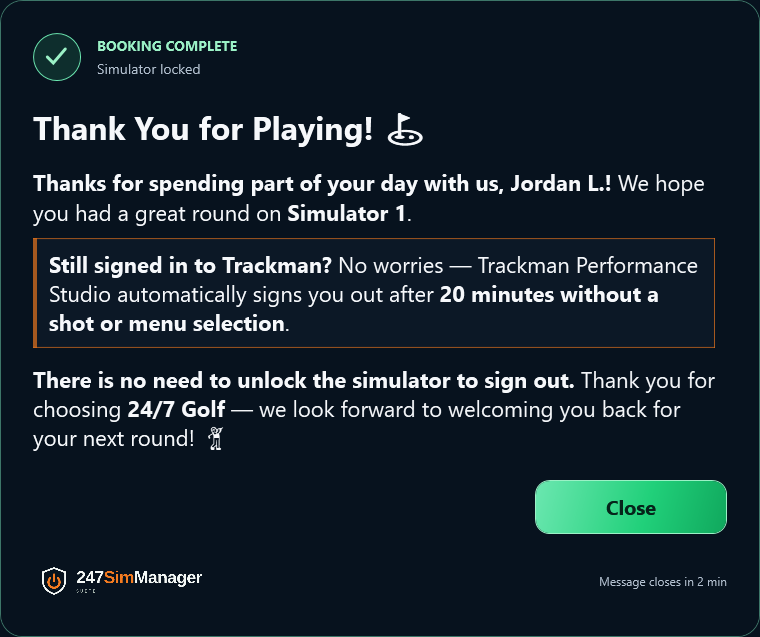
The card has no QR, extension, refresh, or Keep Playing action. Its footer says Message closes in because access is already locked.
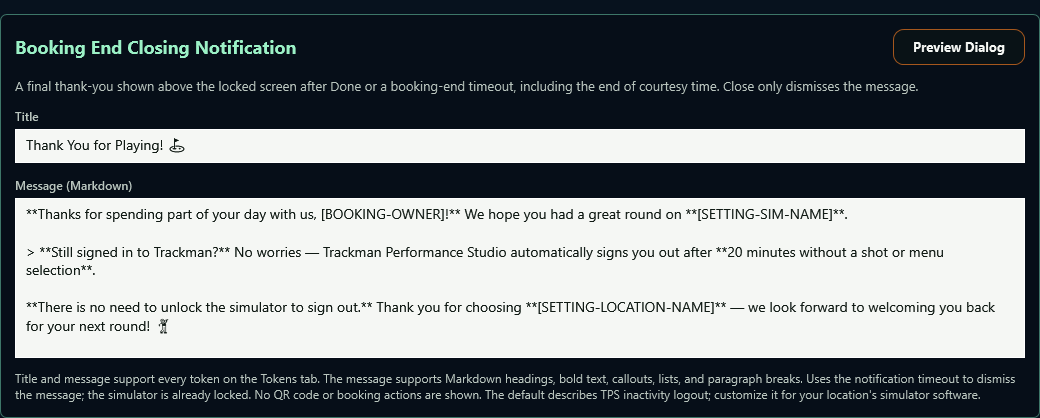
Open Settings → Booking Notifications → Booking End Closing Notification. Edit Title and Message (Markdown), select Preview Dialog, then Save. Preview uses unsaved text without ending a booking.
October 1 source-rendered WPF previews using the shipping Markdown defaults and synthetic token values. These establish appearance; a live 1.46.18 simulator/TPS acceptance run was not performed during package verification.
Title: Thank You for Playing! ⛳
The message uses two golf emojis across the title and body. These exact defaults are shared by AccessControl and Deployment Manager:
**Thanks for spending part of your day with us, [BOOKING-OWNER]!** We hope you had a great round on **[SETTING-SIM-NAME]**.

> **Still signed in to Trackman?** No worries — Trackman Performance Studio automatically signs you out after **20 minutes without a shot or menu selection**.

**There is no need to unlock the simulator to sign out.** Thank you for choosing **[SETTING-LOCATION-NAME]** — we look forward to welcoming you back for your next round! 🏌️The message supports level 1–3 headings, **bold**, > callouts, ordered and bulleted lists, paragraph breaks, and a trailing backslash for a hard line break. The title stays plain text. HTML and unsupported syntax display literally.
Both fields support [BOOKING-OWNER], [BOOKING-START], [BOOKING-END], [SETTING-SIM-NAME], [SETTING-LOCATION-NAME], and [SETTING-MINUTES-BEFORE-BOOKING-END], without regard to letter case. Missing values show Not available. See Settings → Tokens for each value's meaning.
Names and other token values are inserted literally after Markdown is parsed. An asterisk or token-shaped phrase inside a name cannot add formatting or trigger another replacement. The existing WPF renderer supplies the formatted text locally, without adding a browser, package, or online service.
Already deployed simulators keep their saved wording until an owner edits it or selects the focused deployment replacement.
The default message describes the pilot's reported TPS sign-out after 20 minutes without a shot or menu selection. AccessControl neither requests that sign-out nor checks the TrackMan account state. Owners should verify their installed simulator's behavior and adjust the copy; the default opening is facility-neutral.
Failure behavior: a closing-card display failure is logged while the lock continues. Application shutdown and session reset clean up the window and timer. Lifecycle diagnostics record display, dismissal, and presentation failure without recording configured customer copy.
Operator acceptance: after installing the verified Debug package, exercise final Done, timeout, courtesy completion, Close, long text, and a pre-end timeout. Confirm the kiosk remains locked and check the location's TPS inactivity behavior.
System architecture
CourtReserve remains the booking source of truth. The simulator PC presents the access-control kiosk, controls the handoff to the owner-configured simulator software, and keeps simulator-vendor hardware and software responsibilities outside the access-control boundary, and runs WinSysMaint for operational maintenance. RemoteLock manages the physical door PIN behind CourtReserve; projector power automation uses the PJLink standard over TCP/IP from the simulator PC to the compatible projector.
For every component, data store, external service and connection traced to its source files, open the interactive 247SimManager Suite knowledge graph.
Stores location, simulator court, reservation window, member details, and the RemoteLock/Brivo PIN returned as reservation pin-code data.
Provisions the front-door PIN through CourtReserve. 247GolfAccessControl reuses that PIN without integrating with RemoteLock APIs.
Runs full screen without normal window controls. Displays the live or Admin-session demo schedule, validates booking codes, shows guidelines and notifications, hosts the CourtReserve scheduler, and hands off to simulator software. At final booking completion it restores the locked kiosk before showing the closing message; TPS continues beneath it and manages its own account state.
Full-screen golf simulator software shown after access is granted. It receives simulator device data and provides the customer session.
AccessControl turns PJLink-compatible projectors on and off from booking and unlock state using standard PJLink commands over the wired projector network.
A .NET 8 Windows Worker Service that enforces simulator PC settings during scheduled maintenance and logs to Event Viewer.
Projector automation
This is the location-owner reference for wiring, commissioning, and operating the Panasonic projector currently used at 24/7 Golf locations. AccessControl uses the cross-manufacturer PJLink standard over TCP/IP, but the menu paths and approved values below are intentionally specific to the Panasonic PT-VMZ51U7.
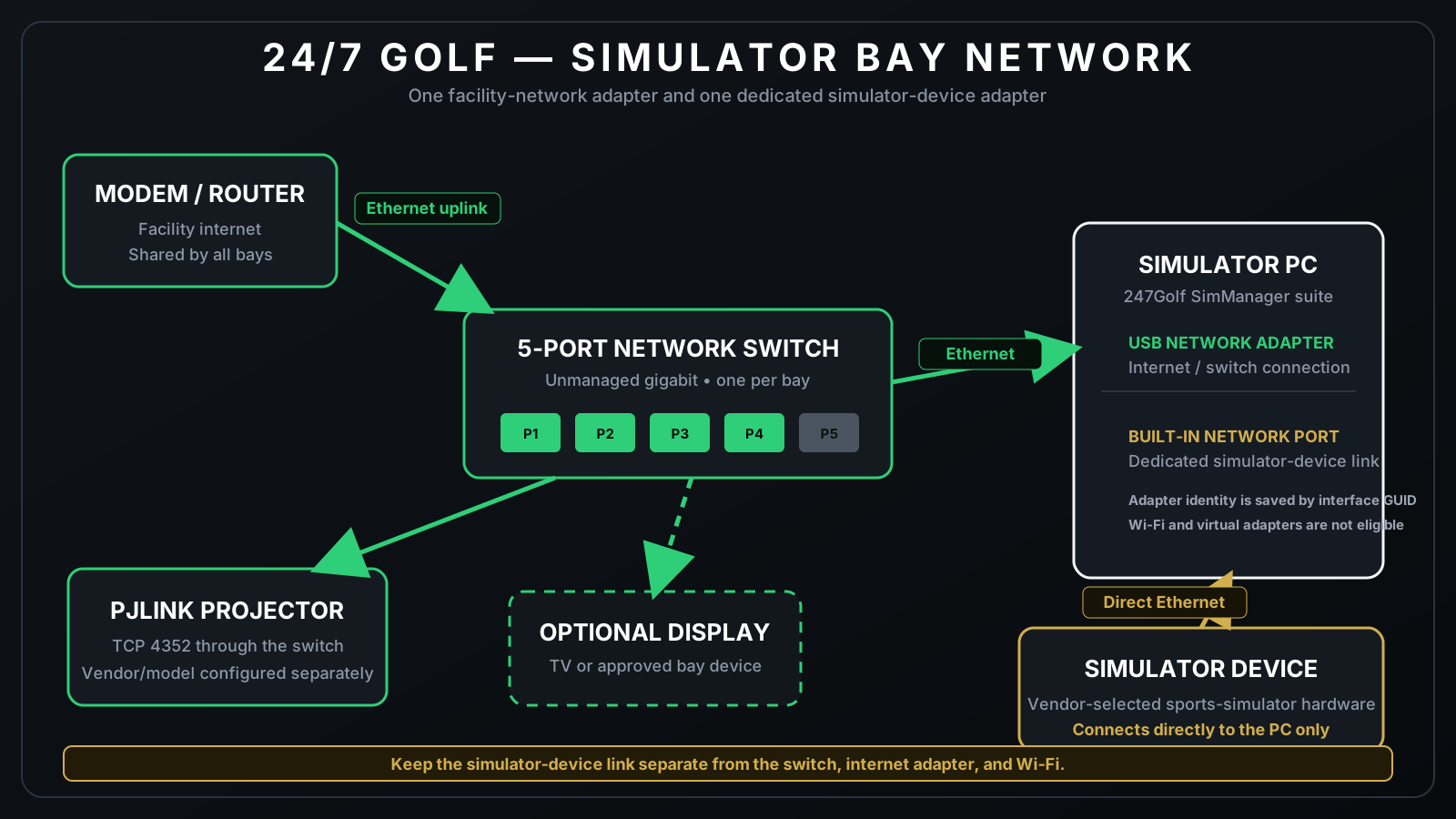
Connect the router or upstream facility switch to the bay switch
uplink. Connect the PC through its USB Ethernet adapter, the
Panasonic projector through its dedicated
<LAN> port, and the optional TV to separate
switch ports.
Run Cat6 directly from simulator device to the network adapter built into the PC motherboard. Never connect simulator device to the five-port switch or USB Ethernet adapter, and do not bridge the two PC adapters in Windows.
The PC reaches the projector through the USB Ethernet adapter and
five-port switch on TCP 4352. Give the projector one
stable IPv4 address and keep this management path off guest Wi-Fi.
Leave Local Bind Address blank for this normal topology.
Panasonic commissioning
<LAN>, not <DIGITAL LINK/LAN>.Ludington SIM1 baseline
192.168.1.21:4352PanasonicPT-VMZ51GA5449466%1POWR 1 / %1POWR 0 / %1POWR ?These values identify the physical SIM1 projector. Every other bay needs its own IPv4 address, serial number, and commissioning record; never copy SIM1's device identity to another projector.
AccessControl Settings → PJLink
The PJLink tab contains one enable switch, owner-facing booking and message timing, the physical endpoint and identity guards, bounded network timing, and three standard power commands. Expand the PJLink entry in the Settings guide above for the complete field-by-field reference.
| Setting | SIM1 default | Owner guidance |
|---|---|---|
| Enable projector control | Off until commissioning passes | The single switch for startup gating, booking policy, Help recovery, and manual/runtime PJLink use. |
| Booking Gap To Turn Projector Off | 30 minutes | Equal-or-longer idle time to the next Early Access boundary permits standby after an authoritative refresh. |
| Show Starting Message | 20 seconds | Total visible time for the immediate status/starting dialog; its timer begins before the first query. |
| Endpoint | 192.168.1.21:4352 | Stable projector address and standard PJLink TCP port. Other bays require unique addresses. |
| Identity | Panasonic / PT-VMZ51 / GA5449466 | Manufacturer, model-family, and exact serial must pass before power changes. |
| PJLink password | Site secret | Separate from the Panasonic administrator password and protected by Windows DPAPI when saved. |
| Local Bind Address | Blank | Windows uses the USB-adapter route. Set only for a support-diagnosed multi-NIC issue. |
| Connection / command timeout | 5 / 5 seconds | Bounded maximum for each TCP connection and command response. |
| Warmup / cooldown | 30 / 60 seconds | Bounded status-polling windows for hardware power transitions. |
| Retry attempts / status poll | 2 / 10 seconds | Bounded transient retries and normal status interval; commands never overlap. |
If PJLink is disabled, startup continues normally with no projector dialog or connection. If enabled, AccessControl shows the dialog before its first network query, checks status, and requests power when needed. Startup application Row 1 waits until the projector reports On and the dialog has closed. One shared 60-second maximum prevents projector trouble from blocking the rest of application startup.
AccessControl requests On at enabled application startup, when a paid booking reaches Early Access, after a valid customer or Admin Code unlock, when Help → Turn On Projector is selected, or when a successful or cached refresh confirms a currently eligible booking. Booking access never waits for warmup, and a PJLink failure cannot grant or deny kiosk access.
Automatic standby is considered only while the locked kiosk is showing and only after a successful authoritative CourtReserve refresh. No future bookings requests standby. Otherwise, the time to the next valid booking's Early Access boundary must be equal to or greater than Booking Gap To Turn Projector Off. A shorter gap preserves the current state.
The booking list refreshes whenever the locked kiosk is newly presented and on ordinary refresh intervals. Failed or unavailable booking data never means an empty schedule and never authorizes shutdown. Unpaid or invalid bookings occupy their scheduled interval but cannot request power, unlock the bay, or join customer continuity.
Help → Turn On Projector is a customer recovery action. Closing Help does not immediately turn the projector back off. The override remains through later refreshes until a valid customer unlock is followed by the kiosk returning at session end. Entering Admin Mode does not clear it; turning Admin Mode off clears it, refreshes bookings, and resumes normal policy when PJLink is enabled.
AccessControl serializes intent, allows Warming and Cooling to stabilize before an opposite command, and lets the newest request supersede older intent. Authentication, identity, network, and device errors are logged without crashing the kiosk or changing booking access.
September 25 research · Deferred
Existing PJLink automation can place the projector in standby during a sufficiently long confirmed booking gap and restore power for Early Access. Debug 1.46.18 does not add Windows sleep, monitor dimming/standby, or automatic GPU power changes.
The research proposes qualifying optional monitor brightness control first, followed by standby only if the exact monitor, cable, GPU driver, and touch connection recover reliably. The computer must continue running TPS and communicating with the simulator device. Windows sleep or hibernation does not meet that operating requirement.
Before implementation: measure actual power savings, prove touch and scheduled recovery, preserve fresh booking coverage and Early Access, and wait until the closing message has finished. TPS rendering changes need vendor guidance and measurement. No savings amount or supported hardware list has been established.
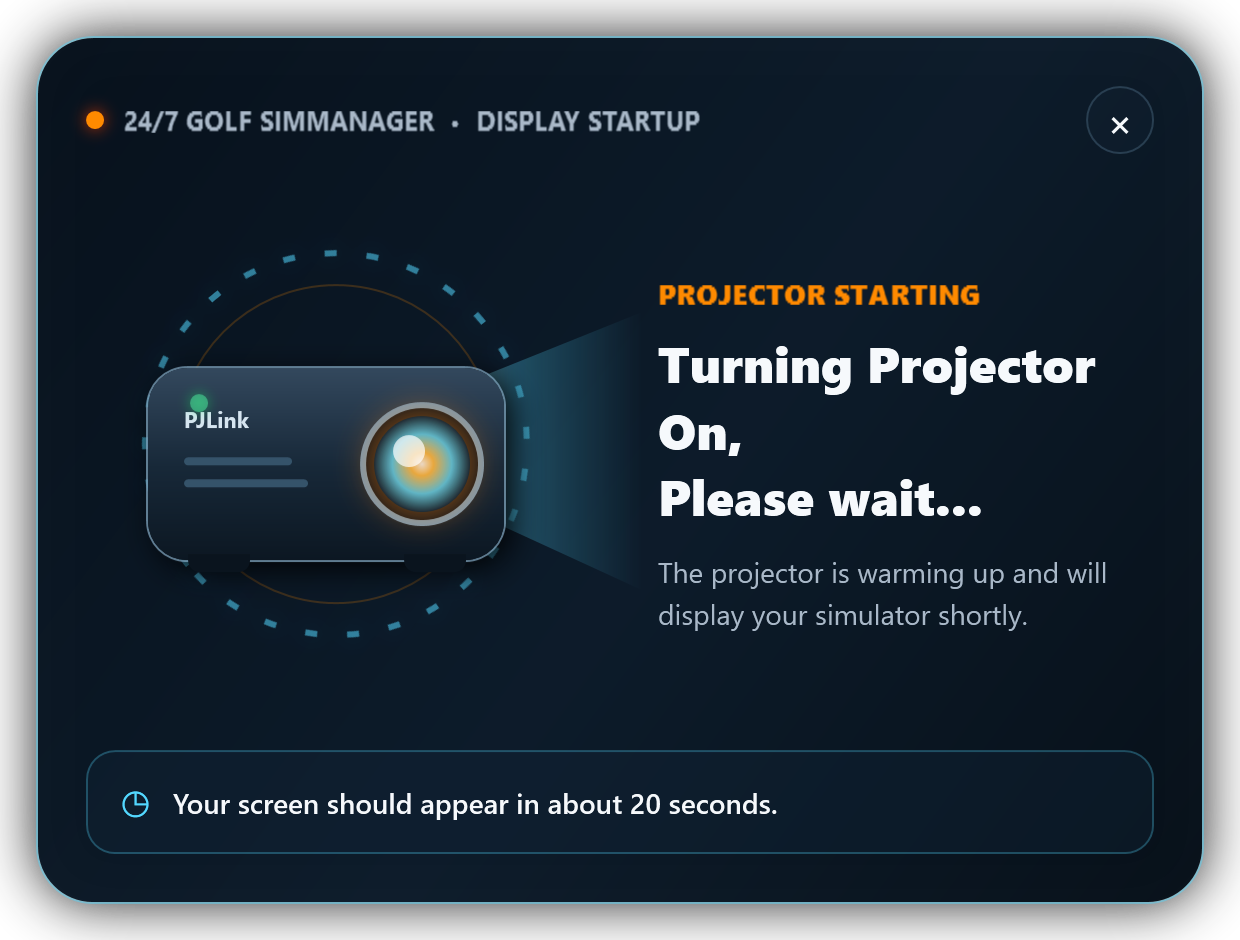
Immediate customer feedback
AccessControl first renders Checking Projector Status, Please wait... before it performs any PJLink network operation. If the projector is in Standby or Warming, the same dialog changes to Turning Projector On, Please wait.... The countdown starts with the first phase and does not reset.
The X closes only the presentation. It does not cancel the power request, projector warmup, booking access, Help override, or the application-startup validation gate.
Download the illustrated Microsoft Word guide for the Panasonic projectors currently installed at 24/7 Golf locations. It covers the required five-port switch and two-adapter PC architecture, Panasonic remote and web-menu setup, stable IPv4 addressing, standby networking, administrator and PJLink passwords, every AccessControl setting, commissioning tests, the complete on/off policy, startup gating, Help recovery, security, and troubleshooting.
The current AccessControl build includes authenticated identity checks, manual power tests, booking-aware automatic on/off logic, failed-refresh shutdown protection, the customer Help power-on override, and the two-phase Projector Startup dialog. Complete the documented projector setup and all three manual tests before enabling unattended control.
Application functionality
247GolfAccessControl is the customer-facing gate in front of the owner-configured simulator software. The customer sees the 24/7 Golf branded kiosk, enters the booking access code, accepts the Sim Use Guidelines, and then continues into simulator software. From the locked kiosk, customers can also open Help, send Feedback, or make a new CourtReserve booking. Near booking end, the application can open CourtReserve so the customer can purchase adjacent time and have the resulting reservation checked automatically. Final completion restores the locked kiosk and shows the owner-configured closing message.
Shows the first non-ended booking and upcoming bookings for the configured simulator bay after filtering CourtReserve results by court name. Customer labels consistently use first name plus last initial. Compact gap rows explain open time and offer Make A Booking only when the owner's threshold permits it.
Compares the entered 4-digit code with the already-loaded active or early-access booking PIN. Manual refresh is available when a customer books on-site.
Valid codes open a markdown-configurable Sim Use Guidelines modal with Small, Medium, or Large customer text. Long content wraps without horizontal scrolling, and the customer must reach the bottom before I ACCEPT is enabled when the document overflows.
A local 4-digit admin code supports maintenance and owner review. Demo Mode becomes available only inside that Admin session and is never carried into the next process start. The Admin Mode and Live/Demo indicators can return or toggle the kiosk state directly. A dedicated settings tab keeps the owner-testing timeline separate from live CourtReserve timing and availability rules.
Help displays owner-authored Markdown, Feedback opens the hosted location form, and Make A Booking combines instructions with the embedded CourtReserve scheduler. When PJLink is enabled, Help also provides a Turn On Projector action at the top of the dialog. All three dialogs use one shared timeout.
When enabled, a separate shutdown code requests feedback before closing the kiosk and writes an error-level Windows Application Event Log entry for the location's monitoring workflow.
A large, themed WebView2 modal combines location-defined Markdown instructions with the validated CourtReserve scheduler. Closing it automatically checks for a qualifying same-customer extension.

Booking validation flow
/api/v1/reservationreport/listactive for the previous day through tomorrow, using simulator-local boundaries that preserve early-morning, midnight, and overnight reservations.
Integration boundary
The current live integration uses CourtReserve's active reservation report, narrows the result set to the configured simulator court, selects the appropriate booking owner from the players list, and uses the reservation or player PIN for kiosk unlock validation.
247GolfAccessControl validates against the PIN for an active or early-access booking on the configured simulator court.
RemoteLock remains behind CourtReserve. The kiosk does not need
credentials or calls to keyincloud.remotelock.com.
247GolfSimManager.slnsrc/247GolfAccessControlconfiguration/SimulatorConfig.example.jsonThe current app build includes a vendor-neutral kiosk and ordered simulator-process startup layer, monitor shields, live CourtReserve retrieval, customer Help and Feedback, new-booking and extension schedulers, booking-gap opportunities, automatic and manual extension reconciliation, owned dialogs that remain above the kiosk until action or timeout, notification relock, beta shutdown monitoring, complete Admin previews, Admin-session Demo Mode, and owner-facing Debug tools for API troubleshooting.
CourtReserve location licensing
AccessControl authenticates with the configured CourtReserve API on
every launch and calls
/api/v1/websitesettings/locations. At least one returned
location ID must be present in the protected entitlement catalog.
This check finishes before the kiosk, projector preparation, simulator software,
Startup applications, booking access, or Demo Mode can begin.
The installed API Key ID and Secret must be valid and authorized to read CourtReserve website settings. The package deliberately ships with blank credentials so each deployment supplies its own protected values.
Approved IDs are held in an authenticated encrypted resource compiled into AccessControl Core. The application performs membership checks without offering an owner editor, deployment setting, or enumerable license list.
Missing credentials, network or permission failures, malformed responses, protected-catalog failures, and unlicensed locations all stop AccessControl before customer or simulator applications are exposed.
Licensed CourtReserve Location - ID: ..., Name: ... for the current run.
24702 and AccessControl exits immediately.
24703 records the returned ID and Name; an always-on-top support notification remains visible until it is closed, then AccessControl exits.
To request licensing for another CourtReserve location, email ludington@24-7golf.com. The unlicensed-location notification directs onsite users to info@24-7Golf.com for assistance. General Settings also includes a mock notification preview that performs no logging, configuration change, or shutdown.
WinSysMaint service
WinSysMaint is not part of the customer screen. It runs as
LocalSystem, starts automatically with delayed start,
reads C:\ProgramData\WinSysMaint\service.json, and
writes operational events to the Windows Application Event Log.
Owners administer its deployed settings from a dedicated AccessControl
Admin Settings tab without exposing service control to kiosk customers.
On configured days and time, the service enforces system settings, then follows one selected action: Settings enforcement only leaves applications running; Restart System performs the controlled Windows reboot.
Re-applies Windows Update, the selected firewall, App & browser control, and Defender-exclusion policies, W32Time, NTP, time zone, GPU preferences, the enabled taskbar baseline, and the selected simulator device wired-adapter properties if they drift.
Independent scans summarize recognized failures, resource warnings, persistent connection/readiness problems, recoveries, and content issues. Owners choose whether to scan and how often. See monitoring settings and event IDs.
Optional ping checks against www.24-7golf.com log
outage and restoration events when troubleshooting is enabled.
The WinSysMaint Admin Settings tab validates every service option, saves complete valid changes directly to the deployed JSON, repairs compatible settings by property, and offers administrator-approved Validate System Settings, Apply Required Settings, Restart WinSysMaint, and Test Maintenance actions.
Every five minutes, WinSysMaint checks the registered AccessControl process in the active kiosk logon. Unexpected absence can trigger recovery; intentional administrator and Customer Shutdown exits remain closed. A surviving TPS process is left running.
AccessControl checks WinSysMaint whenever the locked kiosk is presented. A stopped service is logged and started with narrowly scoped query/start rights; success or failure is recorded for remote support.
Recovery path: WinSysMaint (LocalSystem) → independent five-minute check → current interactive logon and installed EXE validation → shared operation/state locks → durable restart intent and process inspection → launch AccessControl as the kiosk user. AccessControl then performs its normal licensing, projector, and ordered application startup and presents a locked kiosk.
An administrator close in Admin Mode or the final Customer Shutdown exit flushes an intentional-stop record before closing. Entering Admin Mode, canceling the shutdown warning, or merely accepting it before a later crash does not suppress recovery. Manual launch of the next primary instance re-arms the watchdog; duplicate launches cannot change the primary instance's intent.
Deployment and full-system restart share the operation lock with recovery. Retry timing persists through a service restart; old Windows-logon state cannot launch into a new sign-in. The watchdog does not bootstrap an app that has never registered in the current logon and does not detect a live but frozen process. Keep normal Windows logon Auto Start configured where required.
Customer effect: detection normally takes up to five minutes when the service and session are healthy; startup adds its normal delays. Customers enter their booking code again. The journal stores process/logon identity and restart intent, without customer PINs, names, booking payloads, or API secrets. TPS alone exiting does not trigger this watchdog.
Maintenance: Settings enforcement only applies the shared Windows configuration pipeline and leaves applications running. Restart System applies settings, records a watchdog hold, closes visible applications with the configured timeout, waits five seconds, and requests Windows restart. Customer Help reboot uses this same pipeline.
Removed September 13: TPS QR reset settings, booking-gap scheduling, reset command/pipe, warning and approval workflow, readiness signaling, reset-state storage, and events 1040–1047 / 1080–1082. TrackMan startup, GPU/Defender policy, customer booking QR images, and restricted-application recovery remain.
Incident-review findings: correlate Windows and TrackMan logs with application lifecycle records and booking-end timing. A vendor ERROR label or a Windows report timestamp alone does not prove a crash or identify who closed an application. Selected-pattern TrackMan monitoring, introduced in Debug 1.46.9, remains available alongside the broader manual reboot diagnostic report. It does not determine every crash cause, measure GPU health, or prove that AccessControl is leak-free.
New in Debug 1.46.9
Owner setup: in Deployment Manager, review the TrackMan Log Monitoring card below the WinSysMaint installation choice. After installation, use Admin Settings → WinSysMaint in AccessControl. Monitor TrackMan related log files defaults on; Scan Frequency (minutes) defaults to 5 and accepts 1–1,440. Restart WinSysMaint after saving changes. Turning this off leaves the other service features independent.
End-to-end flow: Deployment Manager or AccessControl settings → C:\ProgramData\WinSysMaint\service.json → independent service scanner → selected local TrackMan logs → checkpoint and incident classification → Windows Application log, source WinSysMaint → separately configured remote monitoring. No CourtReserve call or TrackMan API connection is required.
Selected sources: TPS, Remote, device, Golf/Challenge/DrivingRange/Practice and supported game logs; iO service/state/bootstrapper logs; VideoManagement; fusion/radar tracking logs; and vision cleanup disk-space logs. Discovery uses known directories and filename patterns under C:\ProgramData\TrackMan. Optional hardware folders may be absent. API payloads, player databases, and shot recordings are outside the scan.
Quiet startup and recovery: first activation establishes positions at the ends of existing files. Subsequent scans read new complete lines and resume saved positions after restart, including supported rotation and truncation. Connection/readiness warnings wait through a five-minute grace period; repeated incident reports use a 30-minute cooldown. Expected shutdown and routine vendor ERROR/WARN noise are filtered by recognized patterns.
Resource budget: scans never overlap. At most 128 eligible files are selected, with 1 MiB of log data per file and 8 MiB total per scan, plus small identity checks. Each selected directory is limited to 2,048 entries; diagnostic lines are limited to 8 KiB and recognized signals to 2,048 per scan. Up to 256 checkpoints are retained, with unseen identities removed after seven days. Backlogs continue on later scans; vendor deletion can remove unread data.
Privacy and persistence: C:\ProgramData\WinSysMaint\TrackManMonitor\checkpoints.json stores positions and classified state. Event summaries include a source filename and time, without raw log lines, player identifiers, cloud URLs, or exception payloads. A stop or failure between publication and checkpoint saving can repeat a batch.
Validation and next step: isolated checks on Simulator #1 found 118 eligible files. Warm unchanged-log scans took about 6 ms; bounded historical replay took about 52–110 ms for 8 MiB. These were read-only component checks, with no live shots or real event publication. After installing both matching components, restart WinSysMaint and check for event 1120; use the safe sample writer to test remote filters. Live-play CPU, memory, display/GPU, and blank-screen investigation remain separate.
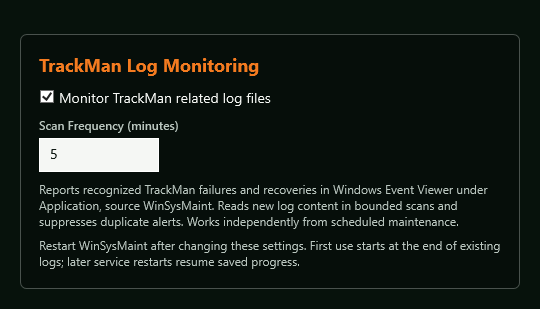
Production XAML card rendered in isolation. Valid edits save automatically; restart WinSysMaint to apply them.
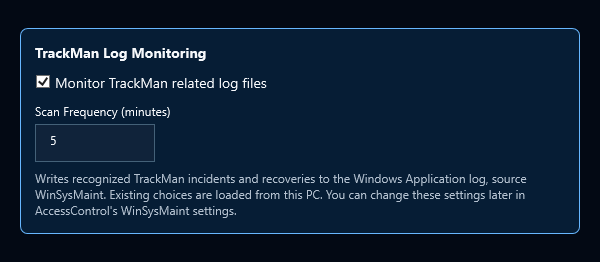
Production XAML card rendered in isolation. Both choices are included in preflight and guided settings review. These previews do not show live installed settings.
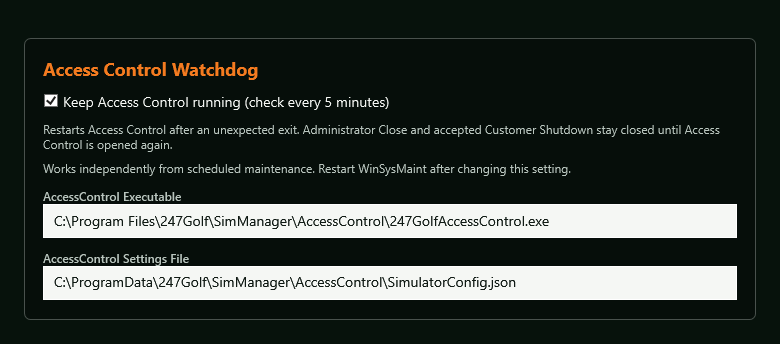
Source-rendered settings preview; enable/disable recovery independently from maintenance.
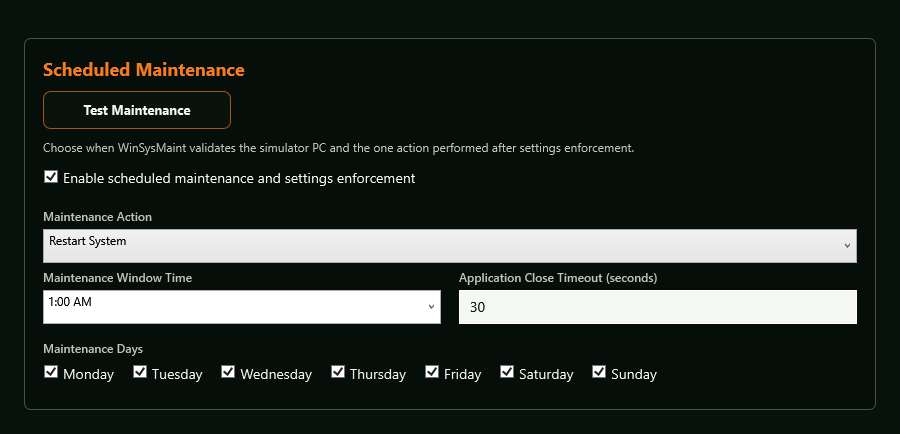
Source-rendered settings preview of the two supported maintenance choices.
Maintenance configuration
These settings are stored in
C:\ProgramData\WinSysMaint\service.json and are managed
from AccessControl Admin Settings > WinSysMaint. The package defaults
provide a safe starting point; Deployment Manager writes machine-specific
paths, simulator identity, and the selected simulator device adapter during
installation or repair.
Swipe or scroll the table sideways to compare all four columns.
| Maintenance setting | Package default | Accepted owner configuration | What WinSysMaint does |
|---|---|---|---|
| Simulator / Court Name | Simulator Bay |
A nonblank owner-facing bay name | Identifies the affected simulator in maintenance messages and Windows Application events. Deployment Manager normally writes the selected Simulator Name. |
| Enable Scheduled Maintenance | Enabled | Enabled or Disabled | When enabled, the service evaluates the selected days and local maintenance-window time. Disabling it leaves WinSysMaint running and preserves the saved schedule, manual validation, manual Apply, and administrator test capabilities. |
| Configure the required Windows taskbar settings | Enabled | Enabled or Disabled | Controls the complete fixed taskbar baseline during deployment, manual Apply/Validate, and scheduled maintenance. Disable it to skip all ten taskbar requirements; the individual taskbar values are intentionally not separate owner settings. |
| Maintenance Action | Settings enforcement only | Settings enforcement only or Restart System | Validate and correct managed settings, then either finish with applications running or perform the controlled full Windows restart. |
| Maintenance Days | Monday through Sunday | One or more full English day names | Calculates the next eligible local maintenance window. AccessControl requires at least one selected day; the service logs invalid entries and falls back to every day if no valid day remains. |
| Maintenance Window Time | 1:00 AM |
12-hour local time in h:mm AM/PM format |
Starts no more than one maintenance action for the eligible local-time window. An invalid service-file value is logged and temporarily falls back to 1:00 AM until the administrator corrects it. |
| Enable Access Control Watchdog | Enabled | Enabled or Disabled; fixed five-minute interval | Recovers an unexpectedly absent registered AccessControl process. Deliberate administrator and final Customer Shutdown exits stay closed until the next primary launch. |
| Monitor TrackMan related log files | Enabled | Enabled or Disabled | Independent selected-log observer. First activation tails existing files; subsequent scans publish recognized incidents as events 1120–1127. Save and restart WinSysMaint to apply changes. |
| Scan Frequency (minutes) | 5 minutes | Whole number 1–1,440 | Delay after each completed TrackMan scan. Scans never overlap; invalid values are rejected in both settings editors. |
| Connectivity Monitoring | Disabled | Enabled or Disabled | Optionally runs internet reachability checks independently of scheduled maintenance and records outage/restoration events 1001 and 1002. |
| Connectivity Check Interval | 30 seconds | 5 seconds or greater | Sets how often the configured host is checked while connectivity monitoring is enabled. |
| Connectivity Check Host | www.24-7golf.com |
A hostname or IP address without spaces | Provides the ping target used only for connectivity status logging; it does not replace CourtReserve or simulator application health checks. |
| AccessControl Executable | C:\Program Files\247Golf\SimManager\AccessControl\247GolfAccessControl.exe | Absolute .exe path | Must match the executable registered by the primary AccessControl instance. The watchdog launches it only after verifying absence and restart permission for the current interactive Windows logon. |
| AccessControl Settings File | C:\ProgramData\247Golf\SimManager\AccessControl\SimulatorConfig.json | Absolute .json path | Locates the shared Watchdog journal and coordination locks beside the installed settings file. Must match the application settings location. |
| Application Close Timeout | 30 seconds | 5 seconds or greater | Sets the graceful-close period for each visible application before WinSysMaint force-terminates it during system restart maintenance. |
Computer configuration compliance
The read-only Validate System Settings action displays each row's Current Value, Required/New Value, and Result without changing Windows. Apply Required Settings uses the production correction pipeline and then runs the complete read-only validation again. Every scheduled maintenance action uses that same correction pipeline before its selected terminal action and logs each correction. Deployment Manager uses this exact engine as well: Install and Repair apply and validate it, while Verify performs validation only. An unsupported or failed individual value is never reported as compliant, but it is nonblocking: WinSysMaint records the failure in the Windows Application log, continues every remaining policy area, and then continues the selected maintenance action.
Swipe or scroll the table sideways to compare all four columns.
| Category | Validation row | Required / new value | Update performed when needed |
|---|---|---|---|
| Windows Time | W32Time policy overrides | Policy Parameters, Config, and NtpClient keys are not present | Removes policy-level registry keys that would override the service-level NTP configuration. |
| Windows Time | Time zone | The owner-selected Windows time-zone ID; package default Eastern Standard Time |
Uses Windows tzutil to set the selected fixed simulator time zone. |
| Windows Time | Automatic time-zone detection | Service start=4, state=Stopped, policy=1 | Disables and stops tzautoupdate and sets DisableAutoTimeZoneUpdate=1. |
| Windows Time | Windows Time service startup | Automatic | Sets the W32Time startup registry value to Automatic. |
| Windows Time | Windows Time service state | Running | Starts or restarts W32Time when its state or related NTP values require correction. |
| Windows Time | NTP server | Owner-selected host plus ,0x9; package default time.nist.gov,0x9 |
Writes the manual peer, applies the W32Time configuration, and requests an initial forced resynchronization. |
| Windows Time | NTP synchronization mode | Type=NTP |
Replaces a missing or conflicting synchronization type with the required NTP mode. |
| Windows Time | NTP client provider | Enabled=1; InputProvider=1 |
Enables the Windows NTP client provider and its input-provider role. |
| Windows Firewall | Private profile | Runtime=Disabled; policy=Disabled | Turns the profile off immediately and writes both persistent service and policy registry state. |
| Windows Firewall | Public profile | Runtime=Disabled; policy=Disabled | Turns the profile off immediately and writes both persistent service and policy registry state. |
| Windows Firewall | Domain profile | Runtime=Disabled; policy=Disabled | Turns the profile off immediately and writes both persistent service and policy registry state when the owner-controlled firewall switch is enabled. |
| App & browser control | Check apps and files | Policy=Disabled; Windows=Off | Disables Windows application-reputation SmartScreen when the owner-controlled App & browser control switch is enabled. |
| App & browser control | App Install Control | Enabled policy=Disabled; mode=Anywhere | Allows applications from anywhere without Store-only or recommendation enforcement. |
| App & browser control | Microsoft Edge SmartScreen | SmartScreen=Disabled; PUA=Disabled | Disables Microsoft Edge SmartScreen and its SmartScreen-backed potentially unwanted download protection. |
| App & browser control | Potentially unwanted apps | Policy=0; Defender preference=0 or default | Disables Defender PUA blocking through persistent policy and the supported Defender preference. |
| App & browser control | Enhanced Phishing Protection | All five policies disabled | Disables the Windows 11 reputation-based phishing protection policies independently of Smart App Control. |
| App & browser control | SmartScreen for Microsoft Store apps | Disabled for every loaded real-user profile | Updates loaded kiosk and administrator profiles while excluding Windows system and service-account hives. |
| Smart App Control | Verified and Reputable policy state | Off (VerifiedAndReputablePolicyState=0) when explicitly selected |
On Windows 11 version 22H2 or newer, writes the Code Integrity policy state, refreshes policy with CiTool.exe -r, and reads the value back. The previous value is restored if refresh fails. |
| Windows Defender | One validation row for every configured exclusion folder | Every configured folder is present; new-computer defaults cover the two TrackMan folders and the 247Golf, SimManager, and AccessControl Program Files folders | Adds only missing trusted folders through the supported Defender exclusion command when its owner-controlled switch is enabled. Microsoft Defender remains enabled. |
| Graphics | One validation row for every configured simulator executable | GpuPreference=2; in every loaded real-user profile |
Writes the Windows High Performance GPU preference for each installed executable and each loaded non-system user profile. Missing executables remain visible as nonblocking, non-applicable mismatches. |
| Taskbar | Search | Hide | Hides the taskbar Search control through Windows policy and each loaded real-user profile. |
| Taskbar | Pinned applications | No applications pinned to the taskbar | Uses Windows taskbar policy to remove the visible pinned-program list and prevent new pins without editing Explorer's undocumented binary favorites database. |
| Taskbar | Task view | Off | Hides Task View through policy and the matching preference for every loaded real-user profile. |
| Taskbar | Widgets | Off | Disables the Windows Widgets entry point through policy and the matching per-user taskbar preference. |
| Taskbar | Resume | Off | Turns off the Windows cross-device and OneDrive Resume taskbar experiences for every loaded real-user profile. |
| Taskbar | Other system tray icons > Hidden icon menu | On | Keeps the hidden-icon menu available while allowing Windows to collect background notification icons there. |
| Taskbar behavior | Taskbar alignment | Center | Centers the Start button and taskbar controls for every loaded real-user profile. |
| Taskbar behavior | Automatically hide the taskbar | Checked / selected | Enables Windows auto-hide while preserving all unrelated taskbar layout data. |
| Taskbar behavior | Combine taskbar buttons and hide labels | Always | Combines buttons and hides labels on the primary and multi-monitor taskbars. |
| Taskbar behavior | Show smaller taskbar buttons | Always | Applies the current Windows policy for always using the smaller taskbar-button presentation. |
| Simulator Device Adapter | Auto Disable Gigabit | Disabled | Updates only the selected physical wired adapter's supported driver property. If the driver does not expose it, WinSysMaint logs the unsupported value and continues. |
| Simulator Device Adapter | Energy-Efficient Ethernet | Disabled | Updates only the selected physical wired adapter's supported driver property. If the driver does not expose it, WinSysMaint logs the unsupported value and continues. |
| Simulator Device Adapter | Power Saving Mode | Disabled | Updates only the selected physical wired adapter's supported driver property. If the driver does not expose it, WinSysMaint logs the unsupported value and continues. |
| Simulator Device Adapter | Speed & Duplex | 1.0 Gbps Full Duplex | Applies the driver-supported one-gigabit full-duplex value. If any adapter value changes, WinSysMaint restarts that adapter once and reads all four properties back. Unsupported values or failed read-back are logged without stopping later settings. |
| File Explorer | Hidden files and folders | Show hidden files, folders, and drives (Hidden=1) |
Shows hidden content in every loaded real-user profile so onsite support can reach normally concealed configuration and diagnostic files. |
| File Explorer | Display full path in the title bar | Checked (FullPath=1) |
Shows the full folder location in Explorer title bars for clearer support evidence. |
| File Explorer | Hide empty drives | Unchecked (HideDrivesWithNoMedia=0) |
Keeps empty removable-media drives visible instead of making the drive list change unexpectedly. |
| File Explorer | Hide extensions for known file types | Unchecked (HideFileExt=0) |
Shows every filename extension so executable, JSON, script, and log file types are unambiguous. |
| File Explorer | Hide folder merge conflicts | Unchecked (HideMergeConflicts=0) |
Keeps folder-merge conflict prompts visible during support and file-copy work. |
| File Explorer | Show drive letters | Checked (ShowDriveLettersFirst=0) |
Shows Windows drive letters with drive names. Windows uses the documented value 0 for this checked Folder Options state. |
| File Explorer | Show encrypted or compressed NTFS files in color | Checked (ShowCompColor=1) |
Uses Explorer color cues to make compressed or encrypted NTFS content visible to support staff. |
| File Explorer | Use Sharing Wizard (Recommended) | Unchecked (SharingWizardOn=0) |
Uses the advanced sharing workflow so administrators can see and control the actual share and permission configuration. |
| Windows Update | Automatic updates | NoAutoUpdate=1; AUOptions=1 |
Writes the Windows Update policy values that prevent unattended automatic-update installation. |
| Windows Update | Preview builds | Disabled (AllowBuildPreview=0) |
Disables preview-build enrollment in Windows Update policy. |
| Windows Update | Get the latest updates | SetAllowOptionalContent=0; IsContinuousInnovationOptedIn=0 |
Disables optional-update policy and the Windows 11 Get the latest updates as soon as they're available opt-in. |
| Windows Update | Other Microsoft products | Policy=0; UX=0; Microsoft Update service registered=False |
Turns off both policy and Windows Settings state for Receive updates for other Microsoft products, then unregisters a Microsoft Update service enrollment left from prior PC use. |
.DEFAULT, LocalSystem, LocalService, NetworkService, and _Classes hives. Reopen File Explorer—or sign out and back in—after deployment if an already-open Explorer window has not refreshed its presentation.
WinSysMaint.
RuntimeNo separate .NET runtime, .NET SDK, Visual Studio, NuGet restore, or QR-code library is required on the simulator PC. WinSysMaint.exe is self-contained.
PackageDownload the complete, versioned one-click Deployment Manager EXE. Its bootstrap and payload manifest verify the embedded archive and every packaged file before launch. Debug pilot packages are intentionally unsigned; the production Release pipeline requires Microsoft Artifact Signing Public Trust signatures and trusted timestamps on every first-party executable, library, and the final outer EXE before handoff.
AccountThe service should run as LocalSystem. No custom service account or manual service-account permission change is needed.
AccessControl watchdogRequires updated AccessControl and WinSysMaint, matching installed executable/settings paths, and a primary AccessControl run in the current logged-in kiosk session. Task Scheduler supplies logon startup; the watchdog handles later unexpected exits.
General Settings can write 55 clearly labeled monitoring samples without performing the real operational action. For broad TeamViewer coverage, monitor the Application log with six exact-source conditions: each of 247GolfAccessControl and WinSysMaint at Error, Warning, and Information, with Event IDs left blank. This includes general WinSysMaint diagnostics under ID 0. Verify remote alert delivery separately.
Owner and vendor support reference
This is the complete support-facing record of the Windows settings managed by 24/7 Golf SimManager during deployment, manual owner validation, and scheduled WinSysMaint maintenance. It is intended to be shared with a simulator vendor, a PC vendor, or remote-support staff when a simulator, network adapter, Windows clock, security policy, taskbar, or graphics preference needs to be investigated.
Deployment Manager verifies package and machine readiness, requires a new-PC WinSysMaint settings review, and selects complete system configuration by default. Install and Repair correct only drift, then validate the result. The operator must make an explicit choice to install application binaries without applying the baseline.
Every scheduled maintenance action begins with the same WinSysMaint settings enforcement. Settings enforcement only then leaves applications running; Restart System proceeds after the settings phase even when an individual unsupported value was logged and skipped.
AccessControl Admin Settings can show every current and required value. Apply Required Settings runs the production enforcer, validates again, and highlights anything that still differs or cannot be changed safely.
SimManager does not change simulator-device firmware, vendor application preferences, facility router configuration, or projector/PJLink configuration in this policy. It manages the Windows PC and the one physical Ethernet adapter selected for the direct simulator device connection. Windows connection names and adapter models may differ by PC vendor; the saved identity is the interface GUID.
Required Windows end state
Deployment Manager and WinSysMaint share one canonical enforcer and validator. Install and Repair apply the complete baseline and then read it back; Verify is read-only. AccessControl administrator actions and scheduled maintenance use the same requirements, so no separate deployment script can drift from the service's policy.
| Category | Required state | Deployment Manager | WinSysMaint | Support intent |
|---|---|---|---|---|
| W32Time policy overrides | Policy-level W32Time Parameters, Config, and NtpClient keys absent | Removed when simulator Windows policy is selected | Checked and removed during enforcement | Prevents an old Group Policy registry key from silently overriding the service-level NTP configuration. |
| Windows time zone | Configured Windows time-zone ID; package default Eastern Standard Time |
Initial simulator policy | Configurable in Admin Settings and enforced | Keeps the PC wall clock aligned with CourtReserve booking start and end values for the simulator location. |
| Automatic time-zone detection | tzautoupdate disabled and stopped; DisableAutoTimeZoneUpdate=1 |
Disabled during initial simulator policy | Checked and corrected | Stops Windows location detection from moving a fixed simulator into another time zone. |
| Windows Time service | W32Time startup Automatic and service Running |
Configured and started | Checked, started, and updated when required | Ensures the durable clock-synchronization service is available after every reboot. |
| NTP synchronization | Configured server plus ,0x9; Type=NTP; NtpClient Enabled=1 and InputProvider=1 |
Package baseline uses time.nist.gov |
NTP host is owner-configurable and enforced | Maintains accurate booking boundaries. A temporary external-server failure is logged and Windows retries later. |
| Windows Firewall | Domain, Private, and Public profiles Disabled in effective runtime and persistent policy | Default-enabled owner choice during Install/Repair; read-only during Verify | Checked and disabled when drift is found while its service switch is enabled | This is an intentional, individually configurable simulator policy. Clearing its switch leaves the firewall unchanged. |
| Windows App & browser control | Windows and Microsoft Edge SmartScreen, App Install Control, PUA blocking, Microsoft Store app web-content evaluation, and Enhanced Phishing Protection Disabled | Default-enabled owner choice during Install/Repair; read-only during Verify | Six validation results are checked and corrected when drift is found while its service switch is enabled | Reduces reputation-based blocking of approved simulator software. Smart App Control remains independently configurable. |
| Windows Smart App Control | Off when explicitly selected on Windows 11 version 22H2 or newer | Independent default-off owner choice during Install/Repair; read-only during Verify | Checks one validation result and corrects drift through Code Integrity policy while its service switch is enabled | Turning Smart App Control off can require a Windows reset or reinstallation before Windows permits it to be enabled again. Unsupported or failed operations remain visible as nonblocking warnings. |
| Microsoft Defender exclusions | Every configured trusted folder present; new-computer defaults cover TrackMan ProgramData, TrackMan Performance Studio, 247Golf, SimManager, and AccessControl | Default-enabled owner choice with an editable one-path-per-line list during Install/Repair; read-only during Verify | Adds missing entries while its service switch is enabled | Reduces antivirus interference with trusted simulator application and data folders. Clearing the switch leaves exclusions unchanged, and Microsoft Defender remains enabled. |
| High-performance GPU preferences | GpuPreference=2; for every configured executable and every loaded real-user profile |
Applies configured simulator application paths during workstation setup | Checks every loaded non-system user profile and corrects drift | Requests the Windows High Performance GPU for the configured applications. The package defaults cover TPS and current TrackMan Virtual Golf paths; a missing executable is reported as a nonblocking warning rather than invented. |
| Windows taskbar | Search hidden; no pinned applications; Task View, Widgets, and Resume off; hidden-icon menu on; centered and automatically hidden; buttons always combined without labels; smaller buttons always used | Enabled by default for Install/Repair, available as one deployment choice, and read-only during Verify | Ten individual validation rows are applied and checked for every loaded real-user profile when the owner-controlled taskbar switch is enabled | Creates one predictable kiosk-ready desktop while letting an owner disable the complete taskbar policy area. An individual taskbar failure is logged as a warning and does not stop remaining settings or maintenance. |
| Windows Update | Automatic updates and preview builds disabled; optional/latest updates disabled; other Microsoft product updates disabled and the Microsoft Update service unregistered | Applied and validated during Install/Repair; read-only during Verify | Checked and enforced during administrator Apply and every scheduled maintenance pass | Prevents an unattended Windows or Microsoft-product change from interrupting or materially changing a simulator PC. Owners can still perform a deliberate, attended update when they choose. |
| File Explorer Folder Options | Hidden items, full paths, drive letters, filename extensions, and NTFS color cues visible; empty-drive hiding, merge-conflict hiding, and Sharing Wizard disabled | Applied and validated for every loaded real-user profile during Install/Repair; read-only during Verify | Eight individual validation rows are checked and corrected for every loaded real-user profile | Gives onsite and remote support an unambiguous view of files, paths, extensions, drives, sharing, and NTFS state. Reopen Explorer or sign out/in to refresh an existing shell window. |
| Simulator device wired adapter | The selected physical interface is checked against all four driver-property requirements below | Required selection; every driver-supported value is configured and verified during WinSysMaint install/repair | Checked every enforcement pass; supported drift is corrected, the adapter is restarted once when changed, and unsupported or failed values are logged without stopping later work | Stabilizes the direct one-gigabit simulator device link independently of the facility internet adapter while remaining compatible with cards that do not expose every requested property. |
Simulator vendor handoff
The administrator selects the active physical Ethernet connection used only by the simulator device. Wi-Fi, protocol-filter adapters, WAN miniports, Bluetooth, kernel-debug, VPN, and clearly virtual interfaces are excluded. A connected adapter without a default gateway is recommended only when exactly one choice matches.
Driver vendors may use different display labels or registry values. SimManager first uses the driver's stable registry keyword and then supported display-name aliases, selects a value the driver actually publishes, applies only mismatches, restarts the selected adapter once, and reads all four properties back. An absent or unsupported property fails visibly instead of being reported as compliant, writes event 1092, and is skipped so deployment, the remaining settings, and maintenance continue.
WinSysMaint operational configuration
These values live in C:\ProgramData\WinSysMaint\service.json
and are edited from AccessControl Admin Settings > WinSysMaint. Save
validates the complete file; Restart WinSysMaint is required when the
running service must reload changed values.
| Setting | Package default | Operational intent |
|---|---|---|
| Court Name | Simulator Bay | Identifies the affected bay in maintenance messages and Event Viewer. Deployment Manager writes the per-machine Simulator Name. |
| Enable scheduled maintenance | Enabled | Allows the selected days and local maintenance-window time to start the ordered workflow. Disabling it does not erase the schedule or prevent an explicit administrator test. |
| Enable Access Control Watchdog | Enabled | Independent five-minute process-presence recovery that honors intentional shutdown and coordinates with deployment and system restart. |
| Monitor TrackMan related log files | Enabled | Controls independent log scanning and recognized incident summaries in the WinSysMaint Application log. |
| TrackMan Scan Frequency (minutes) | 5; allowed range 1–1,440 | Delay after each completed scan; editable during deployment and in AccessControl. Restart WinSysMaint after saving. |
| Maintenance action | Settings enforcement only | Choose Settings enforcement only or Restart System. Both begin by enforcing managed system settings. |
| Maintenance days and time | Every day at 1:00 AM | Defines the local scheduled window. Only one maintenance action runs for a window. |
| Connectivity monitoring | Disabled; 30 seconds; www.24-7golf.com | Optionally pings the configured host and records outage/restoration events independently of the nightly maintenance action. |
| Windows time zone and NTP server | Eastern Standard Time; time.nist.gov | Defines the owner-approved clock policy used by manual and scheduled enforcement. |
| Simulator device adapter | Blank reusable-package value | Deployment Manager writes the selected machine's stable interface GUID. The friendly name/model remains visible to the administrator. |
| Turn off Windows Firewall | Enabled | Controls whether Domain, Private, and Public firewall profiles are disabled and validated. Turning it off leaves every firewall profile unchanged. |
| Turn off App & browser control | Enabled | Controls the supported Windows and Edge reputation-based protections. Turning it off leaves those Windows values unchanged. Smart App Control has its own independent setting. |
| Turn off Windows Smart App Control | Disabled | When explicitly enabled on Windows 11 version 22H2 or newer, sets Smart App Control to Off and validates the result. The default is off because reenabling Smart App Control can require a Windows reset or reinstallation. |
| Configure Defender antivirus exclusions | Enabled | Controls whether the saved exclusion list is applied and validated. Turning it off retains the list for later use and leaves current exclusions unchanged. |
| Defender exclusion paths | TrackMan ProgramData, TrackMan Performance Studio, 247Golf, SimManager, and AccessControl folders | Defines the trusted application and data folders maintained as Microsoft Defender antivirus exclusions while the related switch is enabled. Owners can edit the list. |
| High Performance GPU applications | TPS and current TrackMan Virtual Golf executable paths | Defines the TrackMan applications that receive the Windows High Performance GPU preference for real user profiles. Owners can edit the list for their installed version. Duplicate normalized executable paths are rejected; existing duplicates retain the first configured row and order. |
| AccessControl executable/settings paths | Canonical Program Files and ProgramData paths | Identifies the installed kiosk and shared watchdog journal location. Deployment Manager writes the actual installation paths. |
| Process termination timeout | 30 seconds | Sets the graceful-close period before a visible process is force-terminated during system restart maintenance. |
Requests administrator approval, reads every supported current value, and shows Category, Setting, Current Value, Required/New Value, and Result. It never changes Windows, closes applications, resets simulator software, or reboots.
Runs the same SystemSettingsEnforcer.EnforceAll() pipeline used by nightly maintenance, validates again, and scrolls to the first remaining mismatch. Individual failures are logged and skipped; this manual action does not continue into the selected system restart action.
Enforces settings first and then stops for Settings enforcement only or proceeds to the selected terminal action. An unsupported or failed individual setting does not cancel that action. Each correction, skipped policy operation, and manual or adapter outcome is recorded for remote support.
C:\ProgramData\WinSysMaint\service.jsonC:\Program Files\WinSysMaint\WinSysMaint.exeWinSysMaintC:\ProgramData\247Golf\SimManager\Deployment\LogsC:\ProgramData\247Golf\SimConfigLog.txtDeployment guide
This section is intended for colleagues preparing a new simulator PC. The interactive Deployment Manager installs AccessControl and WinSysMaint together, performs prerequisite and package-integrity checks, collects Simulator Name, Location Name, Location Code, the shared scheduler widget, and CourtReserve credentials, provisions both secrets securely, creates familiar launch shortcuts, preserves site configuration during upgrades unless overwrite is explicitly selected, and records a detailed deployment log. The same application supports Upgrade, Repair, Verify, and Uninstall after the first installation.
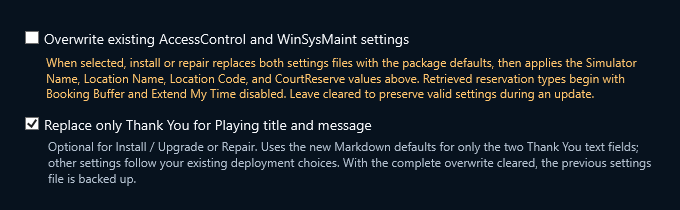
October 1 WPF source preview of the new opt-in checkbox. It starts cleared in each new Deployment Manager session.
This selection replaces just BookingEndClosing.Title and BookingEndClosing.Message with the packaged Markdown defaults. It does not reset other dialog copy, timeouts, credentials, booking policies, or WinSysMaint values. Other deployment selections still apply normally.
The normal value-preserving update backs up the settings file before writing. The replacement runs after settings merge, deployment-profile values and reviewed overrides, so an old saved value cannot undo the choice. Changing the flag invalidates the previous review approval; the two replacement fields show the packaged values as read-only during review.
Verify does not apply this replacement. It is an option within AccessControl Install / Upgrade or Repair, not a standalone settings-only action. Leave it cleared to preserve custom wording.
The latest independently verified package is the version 1.46.18
one-click Debug EXE. Its launcher first checks the embedded ZIP
length and SHA-256, extracts a versioned cache under the current
administrator's LocalAppData, recalculates every payload-manifest
hash, rejects unexpected files, writes a local support log, and then
starts Deployment Manager through Windows administrator approval. An exclusive
version/hash cache lease remains held through the full manager session,
preventing another launch from replacing files while they are in use.
The complete source build passed all 971 tests. Independent package
verification matched all 988 manifest-controlled files across 989
internal ZIP entries, confirmed every first-party executable reports
1.46.18.0, preserved blank reusable CourtReserve credentials and the
machine-specific adapter GUID, and retained the valid Microsoft
signature on the bundled WebView2 installer. The unsigned Debug EXE
is 394,211,328 bytes and its SHA-256 is
AD39BE884EE6135E62DCD98C9C6D41A1078E18A64CAE39B120F1F75A6BA24A64.
A production Release additionally signs and timestamps the completed
outer EXE and every first-party payload file before handoff.
# Complete Debug build, tests, and one-click EXE
pwsh .\DeploymentManager\Build-FullSuite.ps1 -Configuration Debug

# Complete signed Release, or both configurations
pwsh .\DeploymentManager\Build-FullSuite.ps1 -Configuration Release
pwsh .\DeploymentManager\Build-FullSuite.ps1 -Configuration All
Full Debug, full Release, and ALL requests now rebuild the complete solution, run every test, generate and independently verify the one-click package, and use the matching Google Drive handoff folder. Debug packages remain intentionally unsigned for pilot testing. Creating a signed Release remains an explicit production action after the organization's Public Trust signing profile is available.
After the one-click launcher opens Deployment Manager as an
administrator, enter the required Simulator Name, Location Name, and Location Code,
identify the existing kiosk Windows account, and confirm the visible
four-digit Admin Code. Paste one CourtReserve scheduler widget for
both booking flows and enter both API credential fields. Deployment
Manager retrieves the matching reservation types before writing
AccessControl configuration; a failed API request or empty match set
stops safely so an incorrect site catalog is never deployed. The API key
must allow WebSite Settings read access for mandatory startup licensing.
Select the connected physical wired adapter used only by simulator device;
the friendly connection name and hardware model are displayed while
the stable interface GUID is saved internally.
Review the Windows Security card's three default-enabled choices, the
independent default-off Smart App Control choice, and the
one-path-per-line Defender exclusion list. Every exclusion must be a
full Windows path. If this simulator already has a compatible
C:\ProgramData\WinSysMaint\service.json, Deployment Manager
preloads its saved firewall, App & browser control, Smart App Control, Defender switch,
and exclusion paths; otherwise it uses the approved new-computer defaults.
Review Monitor TrackMan related log files and Scan Frequency (minutes)
on the main deployment screen; both values are included in preflight
and the guided review. Their defaults are enabled and 5 minutes.
When installing WinSysMaint on a new computer, review every service
setting before continuing. Preflight also inspects each configured
High Performance GPU executable. A missing path is a visible, nonblocking
warning so the operator can replace a vendor default with the actual
installed simulator-software path without preventing the rest of deployment.
The code defaults to 0000 for onsite
verification, while both the Admin Code and API Secret are protected
before they leave the deployment process. Preflight verifies these
values along with Windows and account readiness, package hashes,
payload layout, install paths, WebView2 registration, and settings-file
compatibility.
Keep AccessControl and WinSysMaint selected for a full simulator deployment. AccessControl auto start is a separate choice, so the application can be installed for manual launch from its shortcuts and registered later from General Settings. For a new computer, complete the required WinSysMaint settings review; every supported service field is available before anything is installed. For an existing simulator, leave settings overwrite cleared, run preflight, and select Review Settings Changes. The guided review shows every retained, missing, invalid, retired, and version value without requiring JSON editing. Values already selected on the main screen—including the friendly simulator device adapter—appear as green read-only results; only optional package values remain editable. Opening the review writes a support report before installation. Copy diagnostics copies the report and log location; errors and the path are selectable, while individual setting values and overrides are excluded from the report. Apply that reviewed plan before installation. Select complete overwrite only when the packaged defaults and deployment values should replace both installed configurations. For just the closing copy, use the independent Thank You title/message replacement while leaving full overwrite cleared. Complete system configuration is selected by default. Its shared policy covers time service, NTP, time zone, the individually configurable firewall, App & browser control, Smart App Control, and Defender exclusions, GPU, the simulator device adapter, the enabled ten-setting taskbar baseline, all Windows Update lockouts, and all eight File Explorer preferences. The firewall, App & browser control, Defender exclusions, and taskbar policies each have a default-enabled deployment control. Smart App Control is an independent default-off control because turning it off can require a Windows reset or reinstallation before it can be enabled again. Every choice is written to WinSysMaint for future manual and scheduled maintenance. Installing application binaries without applying this computer baseline is an explicit opt-out. Every setting is inspected, logged as already correct when appropriate, and changed only when it has drifted.
Select Install and follow the live activity log. AccessControl
is placed under Program Files, mutable machine configuration
under ProgramData, and all-users 247AccessControl
shortcuts are created in the Start Menu and on the Public Desktop.
The optional kiosk-user logon task follows the selected auto-start
choice. A SID-restricted encrypted Admin Code handoff is staged
for only the selected kiosk account. The API Secret uses its own
purpose-separated encrypted handoff. Simulator Name, Location Name,
Location Code, the reconciled reservation-type Booking Buffers rows,
both scheduler fields, API Key ID, and the approved defaults are
written into the installed configuration. WinSysMaint receives the
canonical service.json and is installed as LocalSystem
with delayed automatic start and recovery actions. Deployment also
grants the kiosk account query/start/interrogate rights for locked-kiosk
service recovery while retaining service stop and configuration rights
for administrators. The deployment engine then calls WinSysMaint's
canonical settings command to apply and validate the complete Windows
baseline; any remaining mismatch is reported with its current and
required values instead of being hidden by a separate installer script.
Unsupported or failed individual settings are logged to Deployment
Activity and the Windows Application log, then deployment continues.
Sign in to the exact Windows kiosk account selected during
deployment and start AccessControl. Its first launch decrypts
the one-time handoffs, protects the Admin Code and API Secret for
that current user, saves the canonical user settings, and deletes
each handoff only after a successful save. AccessControl then calls
the CourtReserve locations endpoint and must confirm an entitled ID
before it starts simulator software or presents the kiosk. Confirm the installed
Simulator Name, Location Name, Location Code, reservation-type rows,
scheduler, and the read-only
Licensed CourtReserve Location ID and Name in General
Settings. The WinSysMaint tab can load its deployed
service.json, validate and save later maintenance changes,
validate or apply all managed Windows settings, preview or test the selected maintenance action, and request an elevated
service restart when changes should take effect. Reopen File Explorer,
or sign out and back in, if an Explorer window that was already open has
not yet refreshed the newly applied Folder Options.
Run Verify and confirm the installed version and manifest, Start Menu and Public Desktop shortcuts, optional kiosk startup, WebView2 customer flows, Internet Time, selected policy state, the ten taskbar result rows, four Windows Update result rows, eight File Explorer result rows, the four simulator device adapter properties, AccessControl launch, the running WinSysMaint service, and the kiosk account's file-only permission on the service configuration. Open General Settings to confirm the licensed CourtReserve identity, use the mock unlicensed-notification preview if desired, and verify WinSysMaint health when the locked kiosk is presented. Keep the downloaded versioned EXE and its deployment log together for later Upgrade or Repair work; bootstrap logs remain under the launching administrator's LocalAppData, while backups and deployment history remain under ProgramData on the simulator computer.
What the deployment manager controls
The deployment engine uses Windows PowerShell and standard Windows tools. The packaged applications are self-contained, so a simulator PC does not need a separate .NET runtime, SDK, Visual Studio, or database server. Bookings remain authoritative in CourtReserve and in memory.
Public website hosting
This portal is static and dependency-free. It does not require server-side rendering, Worker code, bindings, Node packages, or private workspace access. Cloudflare serves it from the 247simmanager.com zone, next to the 247SimManager Suite marketing site.
Changes to the public-website folder publish automatically when they reach the main branch. Other branches get a private preview version, so the live portal changes only after a merge.
247simmanager-portal (static assets only)portal.247simmanager.compublic-websitenpx wrangler deploy
wrangler.toml holds the Worker and domain settings,
_headers the response headers, and
.assetsignore keeps configuration files from being
served.